Appearance
User Guide
Books is a self-hosted book management system. It ingests ebook files, enriches their metadata from Google Books and Hardcover, organizes them into a structured library, serves them to e-readers via an OPDS catalog, and syncs your reading progress with KoReader. Everything runs on your own hardware -- no cloud accounts required beyond optional API keys for metadata enrichment.
This guide walks through every part of the app, from first login to tracking your reading stats.
Initial Setup
When you start Books for the first time, there are no accounts or API keys yet. The app will prompt you to create your first API key. Copy this key and store it somewhere safe -- it is your login credential.
To log in, open the app in your browser and enter the API key on the Settings page. The app stores a session cookie so you stay logged in across visits. You only need to enter the key once per browser.
TIP
The browser never sees your raw API key after login. Books uses a Backend-for-Frontend pattern where the session cookie is exchanged for an authorization token server-side, keeping your key secure.
Settings & Configuration
The Settings page is where you connect external services, check server health, and configure file paths. It has four tabs: Connections, System, Failed Jobs, and Paths.
Connections
The Connections tab is where you wire up the services that make Books useful beyond basic file storage.
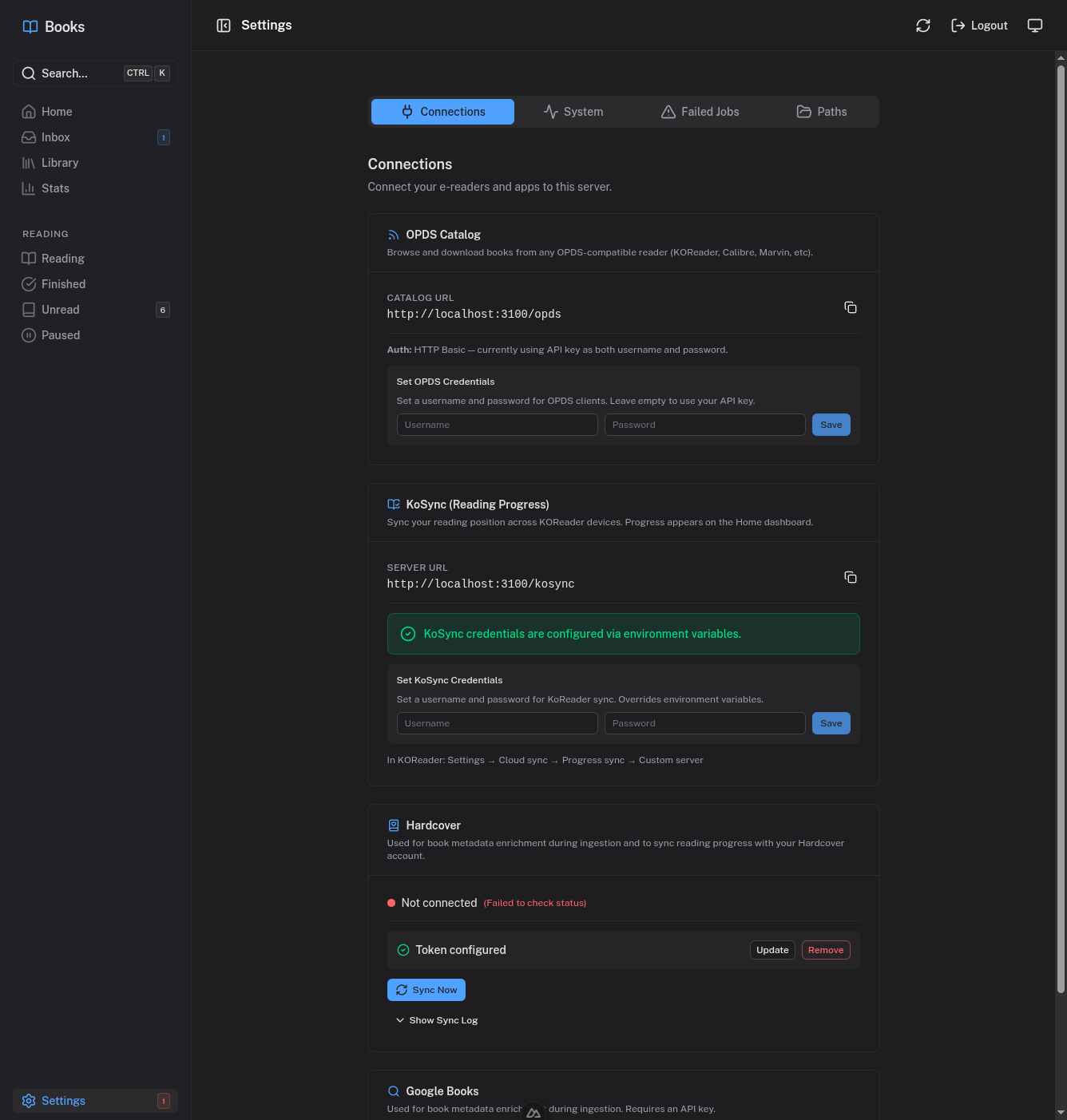
OPDS Catalog -- This is how your e-readers access your library. The catalog URL and credentials are displayed here. You can set a dedicated username and password for OPDS clients, or leave them empty to fall back to API key authentication. Point your reader (KOReader, Calibre, Marvin, etc.) at the catalog URL shown on this page.
KoSync (Reading Progress) -- KoSync syncs your reading position across KoReader devices and back into Books. The server URL is shown here, and you can set a username and password that your KoReader devices will use. In KOReader, go to Settings, then Cloud sync, then Progress sync, and select Custom server, entering the URL from this page.
Hardcover -- If you use Hardcover, you can connect your account by entering your API token. Books will use Hardcover as a metadata source during ingestion and can sync your reading status to your Hardcover profile daily. Once connected, your username and connection status appear here.
Google Books -- Enter a Google Books API key to use Google Books as an additional metadata source. This is configured through the Settings UI (Connections tab) and stored in the database.
Paths
The Paths tab shows the library and inbox directories configured on the server. These are set via environment variables at deployment time and displayed here for reference.
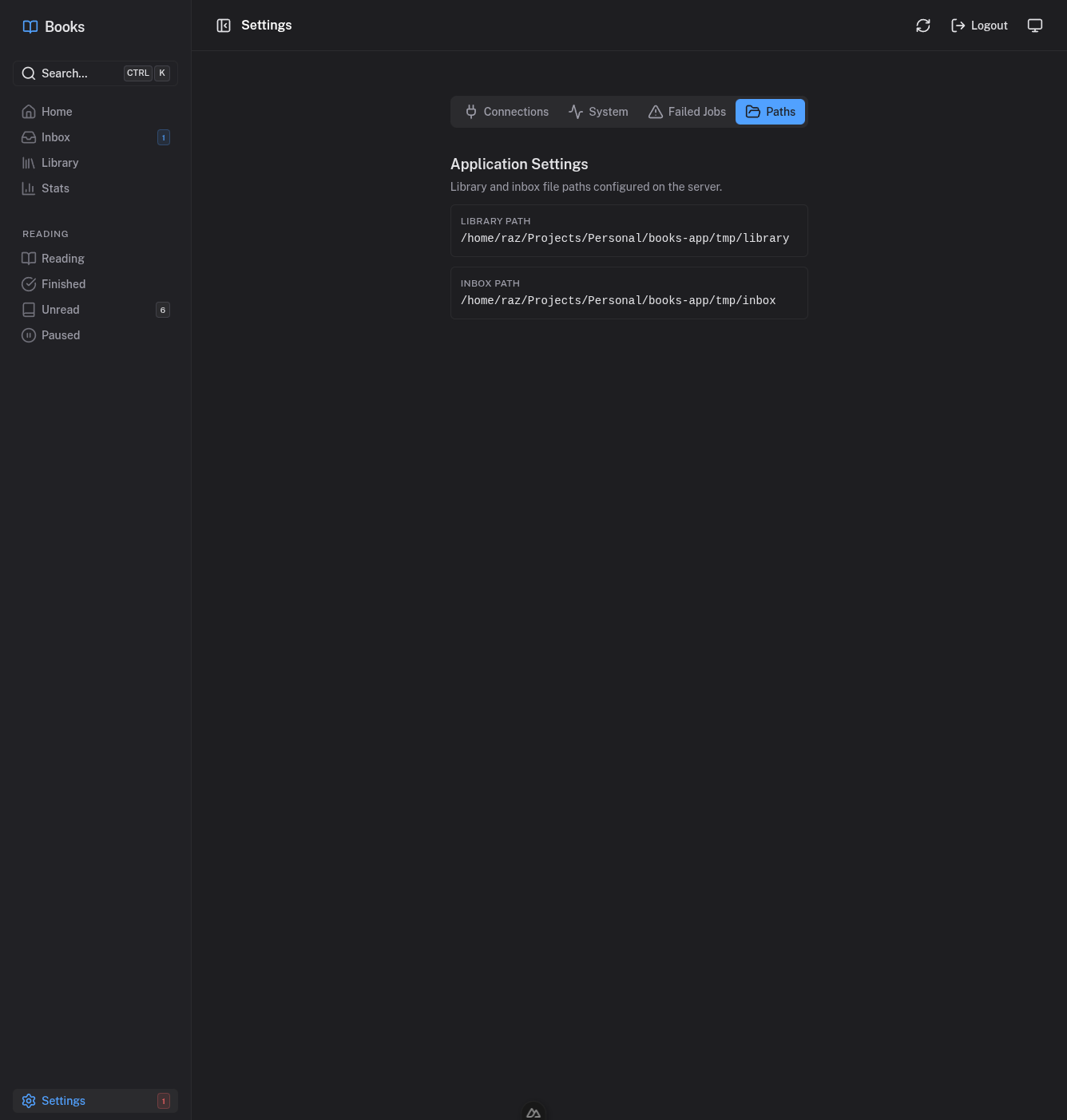
The inbox path is where new book files land before processing. The library path is where organized books are stored in an Author/Title/ folder structure.
System
The System tab gives you a health check dashboard. You can verify that the database and Redis are connected and see latency for each. Below that, the Job Queues section shows a breakdown of all background processing queues -- how many jobs are waiting, active, completed, failed, delayed, or paused.
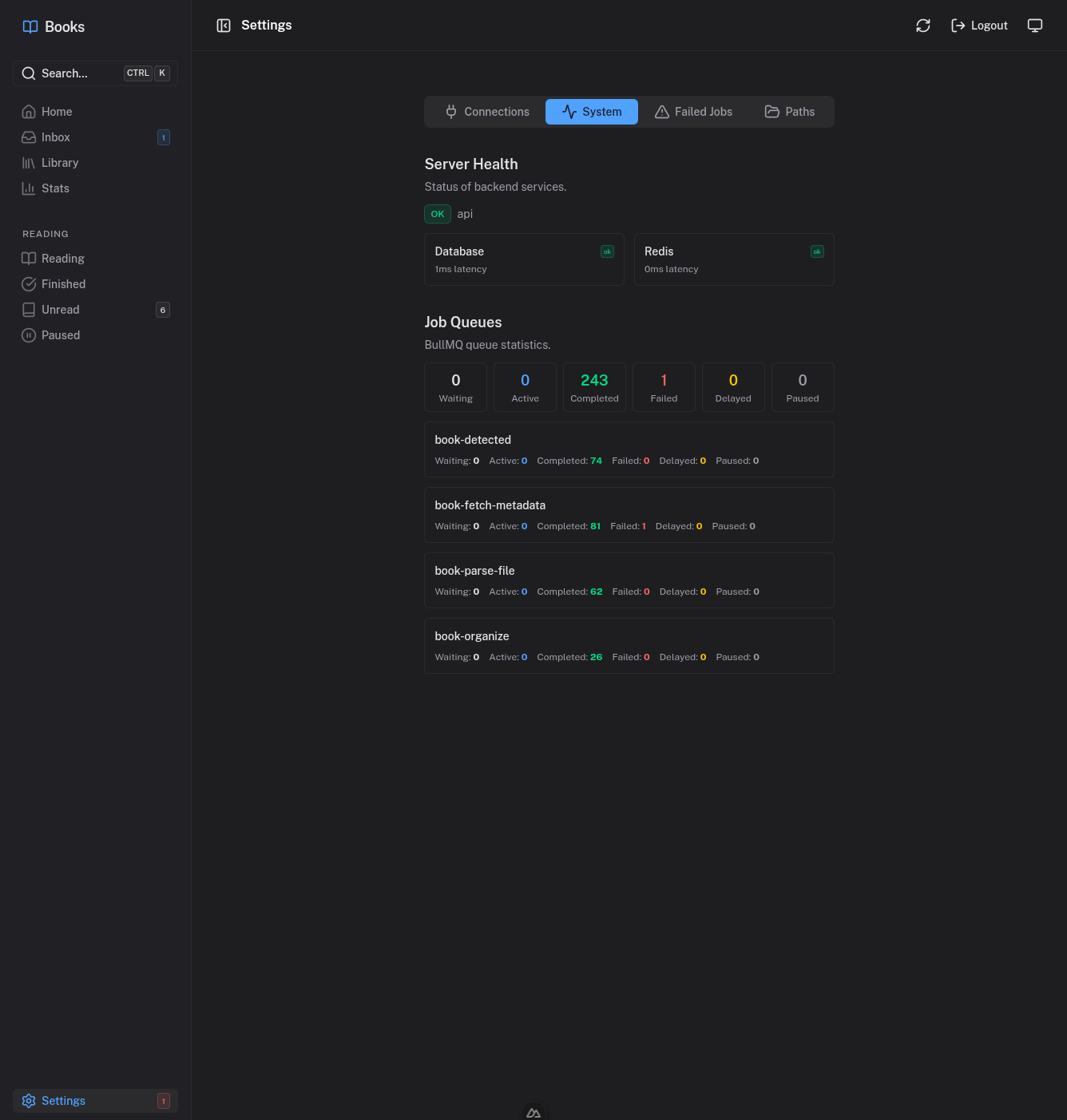
This is the first place to look if something seems stuck. If a queue shows failed jobs, switch to the Failed Jobs tab to see error details and retry individual jobs.
Adding Books
There are two ways to get books into the system.
Drop Files into the Inbox Folder
The simplest method: copy ebook files directly into the inbox folder on the server's filesystem. Books watches this directory with a file watcher and automatically picks up new files. As soon as a file lands in the inbox, the ingestion pipeline kicks off -- computing checksums, detecting format, extracting embedded metadata, and querying external sources.
This approach works well if you have SSH access to your server or mount the inbox directory via NFS, SMB, or similar.
Upload Through the Web UI
From the Inbox page, click the Upload button in the top bar. A modal appears with a drag-and-drop zone where you can drop files or click browse to select them from your computer.
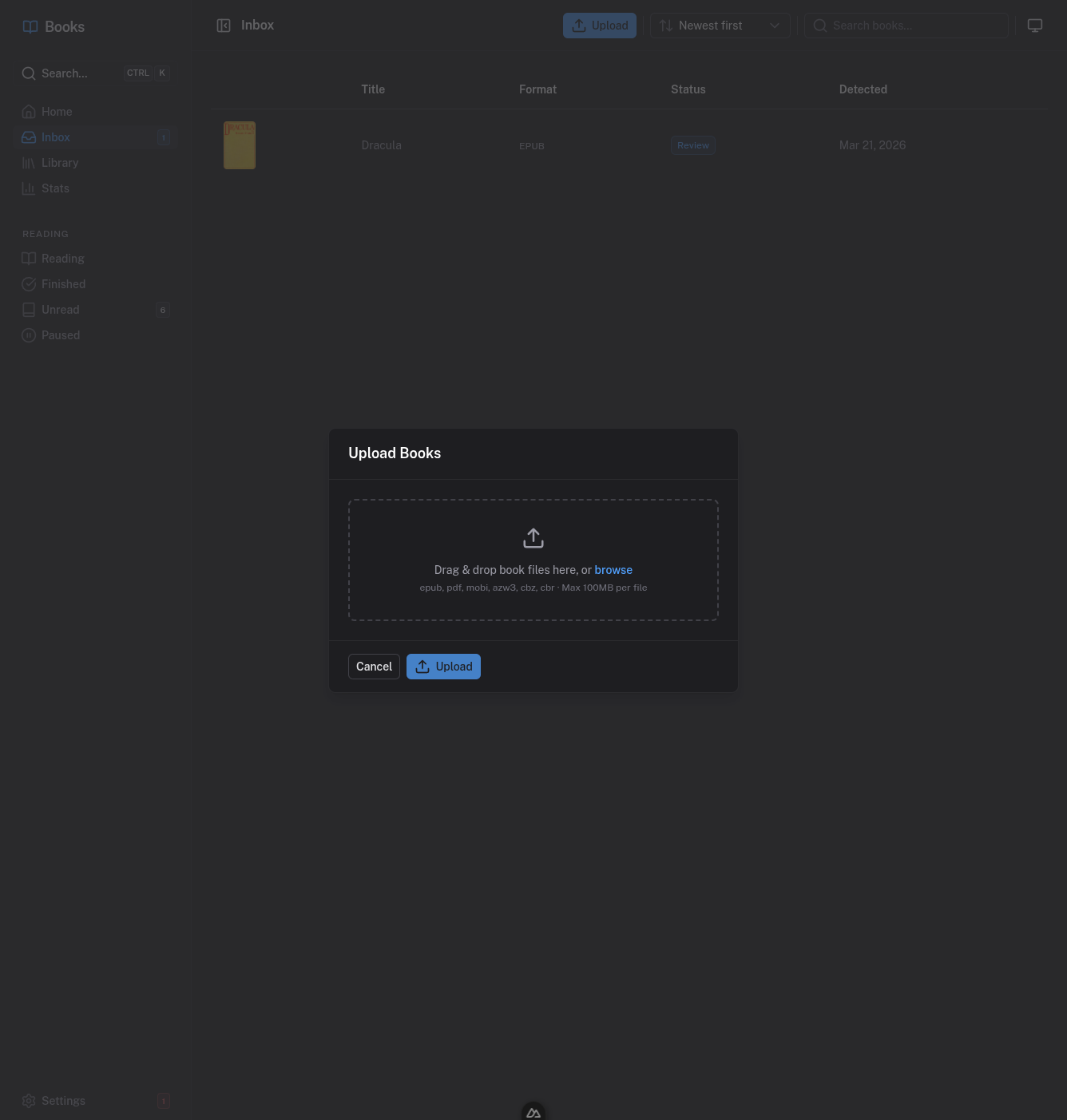
Supported formats include EPUB, PDF, MOBI, AZW3, CBZ, and CBR, with a maximum size of 100 MB per file. After uploading, the file enters the same ingestion pipeline as inbox-dropped files.
Inbox & Metadata Review
The inbox is the staging area where books live while their metadata is being gathered and reviewed. Every book passes through the ingestion pipeline before it reaches your library.
The Ingestion Pipeline
When a new file is detected, it moves through these stages automatically:
- Detected -- The file is checksummed, its format is identified, and a database record is created. Duplicate files are caught here.
- Parsed -- Metadata is extracted from the file itself (Dublin Core from EPUBs, XMP/Info from PDFs).
- Metadata Fetched -- Google Books and Hardcover are queried in parallel (if API keys are configured). Results are stored as metadata candidates.
- Review -- The book is ready for you to review and approve.
Inbox List
The inbox list shows all books currently being processed, along with their format, status, and detection date. You can search, sort (newest or oldest first), and see at a glance which books need your attention.
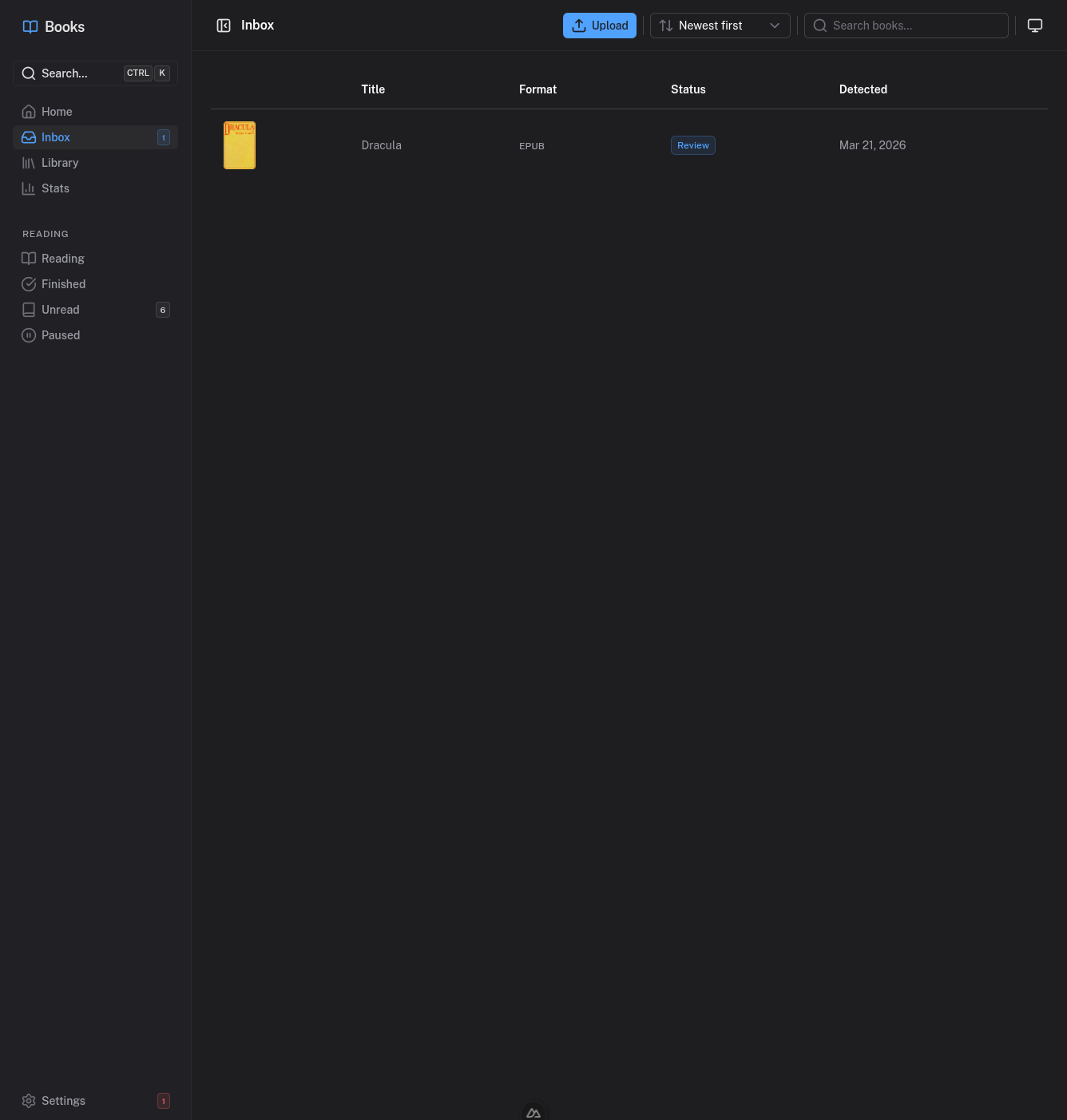
Books with a Review status badge are waiting for you to pick their metadata and approve them.
Reviewing Metadata
Click on any book in the inbox to open the review page. This is where the metadata picker lets you build the best possible record for each book by combining information from multiple sources.
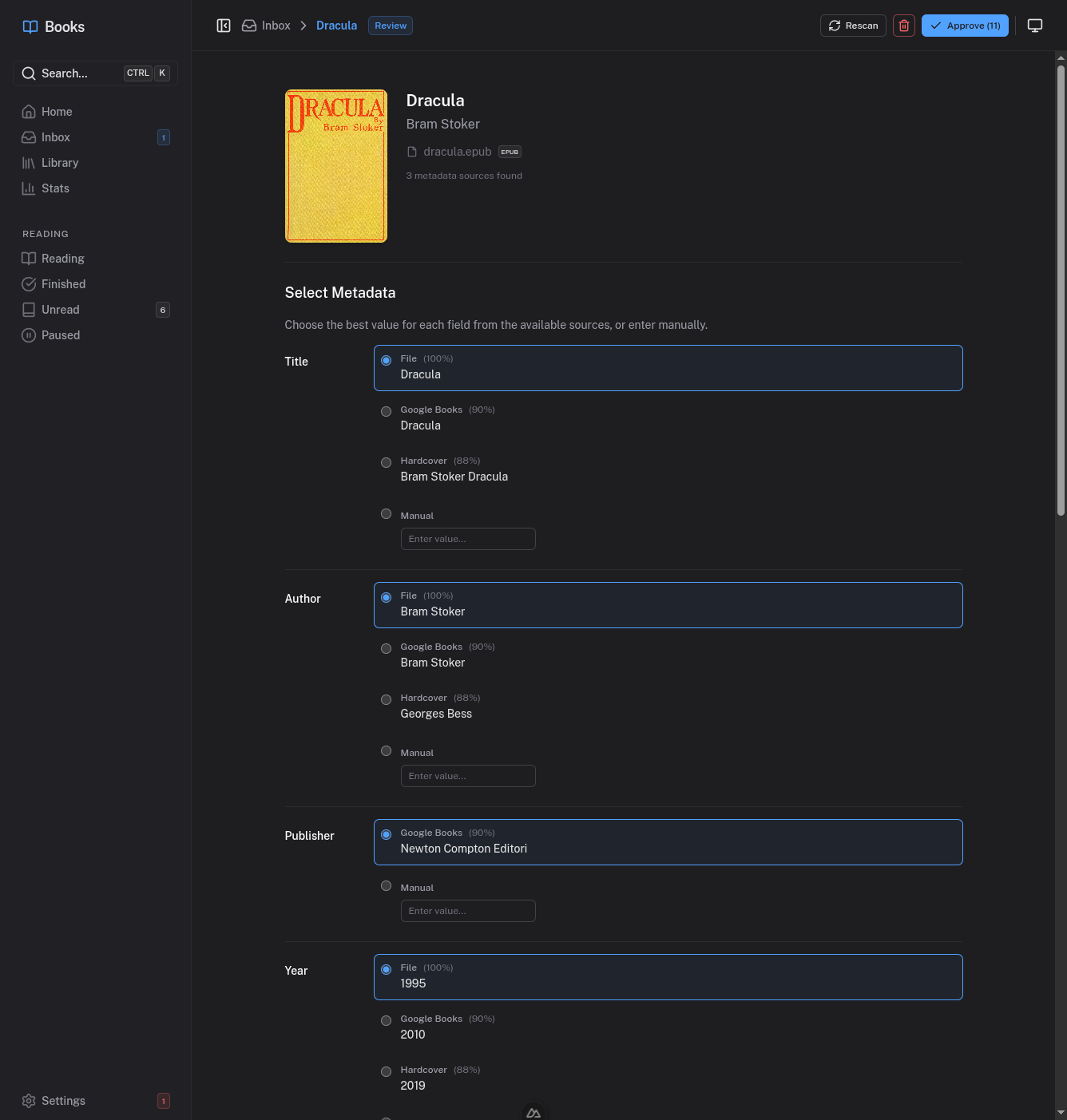
At the top of the page, you see the book's cover (if one was found), its current title and author, the attached file, and how many metadata sources were found.
Below that, the Select Metadata section presents every field -- title, author, publisher, year, ISBN-10, ISBN-13, description, cover image, genres, and more. For each field, you see candidates from different sources:
- File -- Metadata extracted directly from the ebook file. Shown with a confidence percentage.
- Hardcover -- Data from the Hardcover API, also with a confidence score.
- Google Books -- Data from Google Books (when available).
- Manual -- A free-text input where you can type any value yourself.
Select the best value for each field by clicking the radio button next to it. The currently selected option is highlighted. You can mix and match freely -- pick the title from the file, the author from Hardcover, and type in the genres manually.
When you are satisfied with your selections, click Approve in the top-right corner. The book is then organized: files are moved to the library in an Author/Title/ folder, the cover image is downloaded, approved metadata is embedded into the EPUB file, and the book becomes part of your library.
If the metadata results look wrong or incomplete, click Rescan to re-query external sources. You can also delete the book from the inbox if it is not something you want to keep.
Library
Once a book is approved, it appears in your library. The library page offers two views and several ways to find what you are looking for.
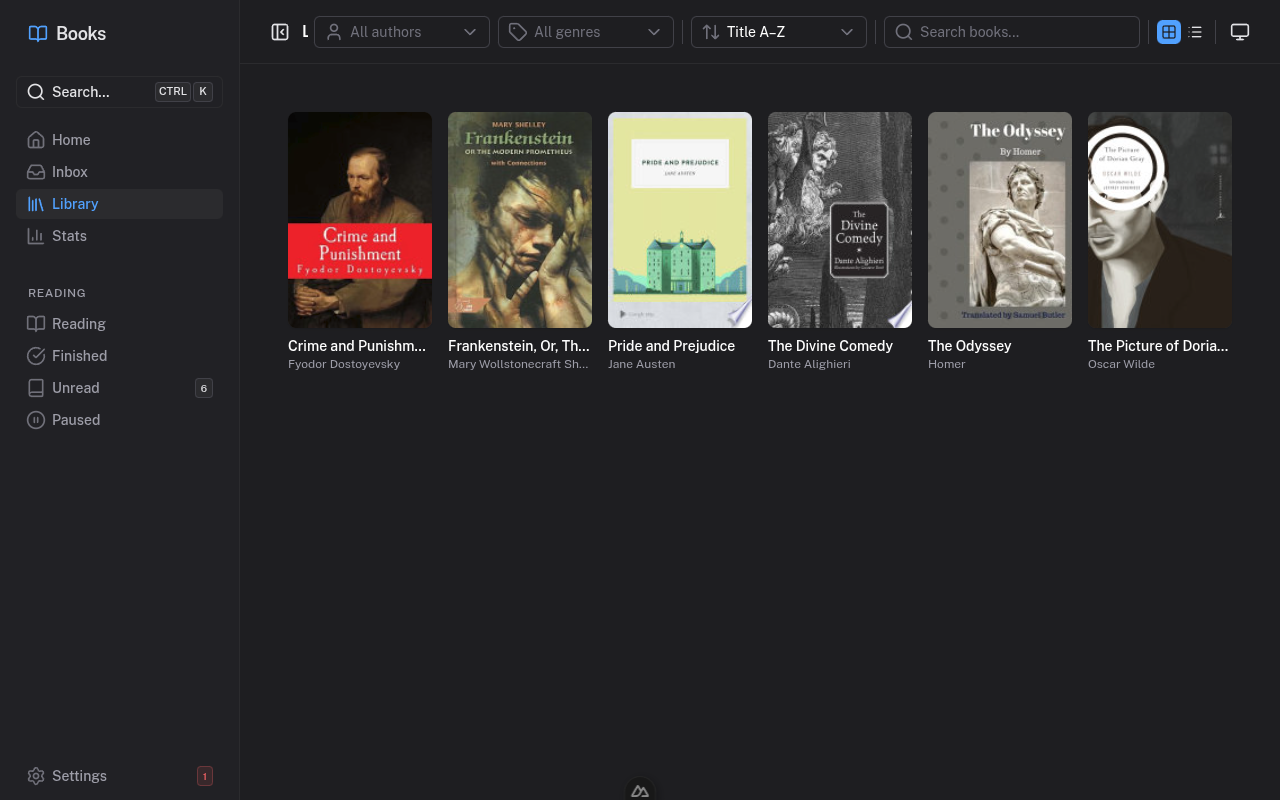
Grid View
The default grid view displays book covers with the title and author underneath. This is the most visual way to browse your collection.
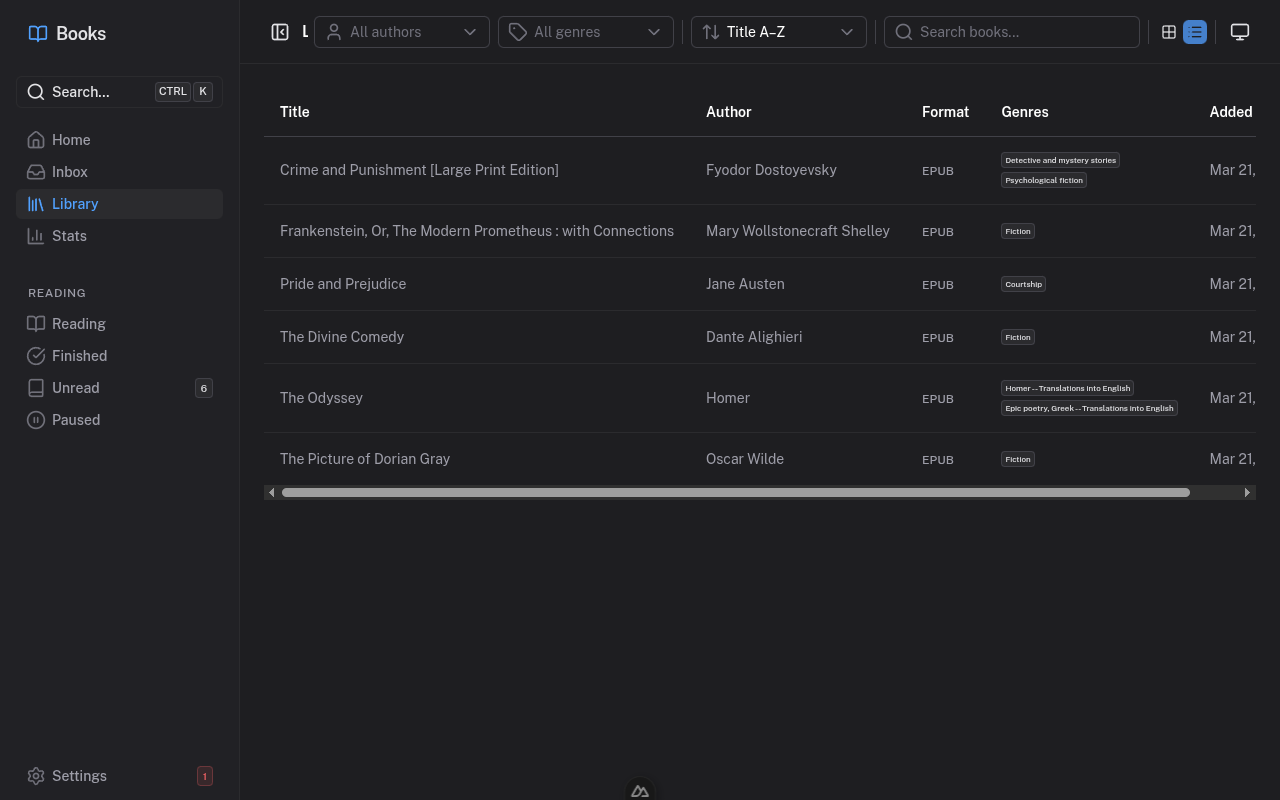
List View
Toggle to list view for a compact table showing title, author, format, genres, and the date the book was added. This is useful when you have a large library and want to scan quickly.
Filtering and Search
The toolbar at the top of the library provides several controls:
- Author filter -- A dropdown to narrow results to a specific author.
- Genre filter -- A dropdown to filter by genre.
- Sort -- Sort by title (A-Z or Z-A), author, or date added.
- Search -- Full-text search across titles, authors, and other metadata. The search is typo-tolerant, so close matches still surface results.
There is also a global search available from anywhere in the app via Ctrl+K (or the search button in the sidebar), which searches across both the library and navigation links.
Book Details
Click on any book in the library to open its detail page. This is the central hub for everything about a specific book.
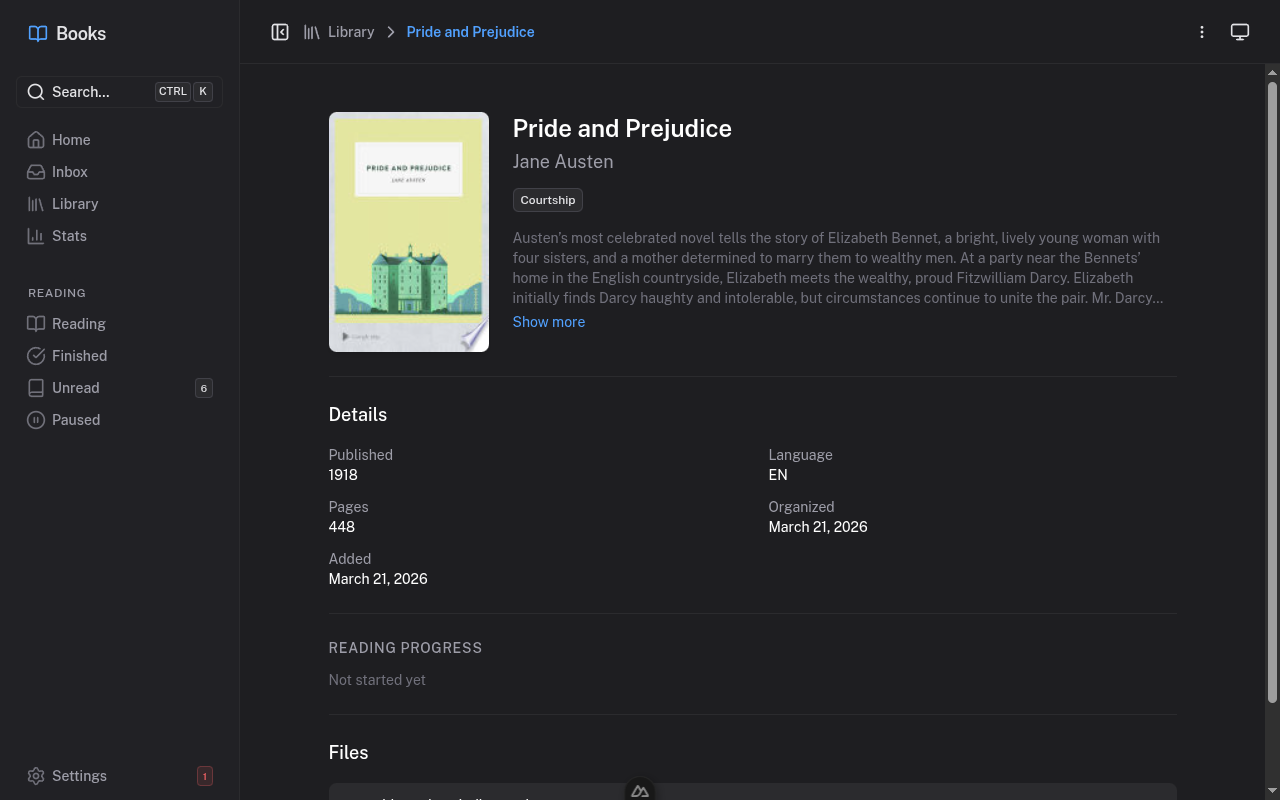
The detail page shows:
- Cover image on the left.
- Title and author prominently at the top.
- Genres as tag badges below the title.
- Description with a "Show more" toggle for longer text.
- Details grid -- publisher, published year, language, page count, ISBN-13, ISBN-10, organized date, and added date.
- Reading Progress section showing sync data from KoReader (more on this below).
- Files section listing each file attached to the book, with format, size, and a Download button.
Actions Menu
The three-dot menu in the top-right corner of the detail page opens a dropdown with four actions:
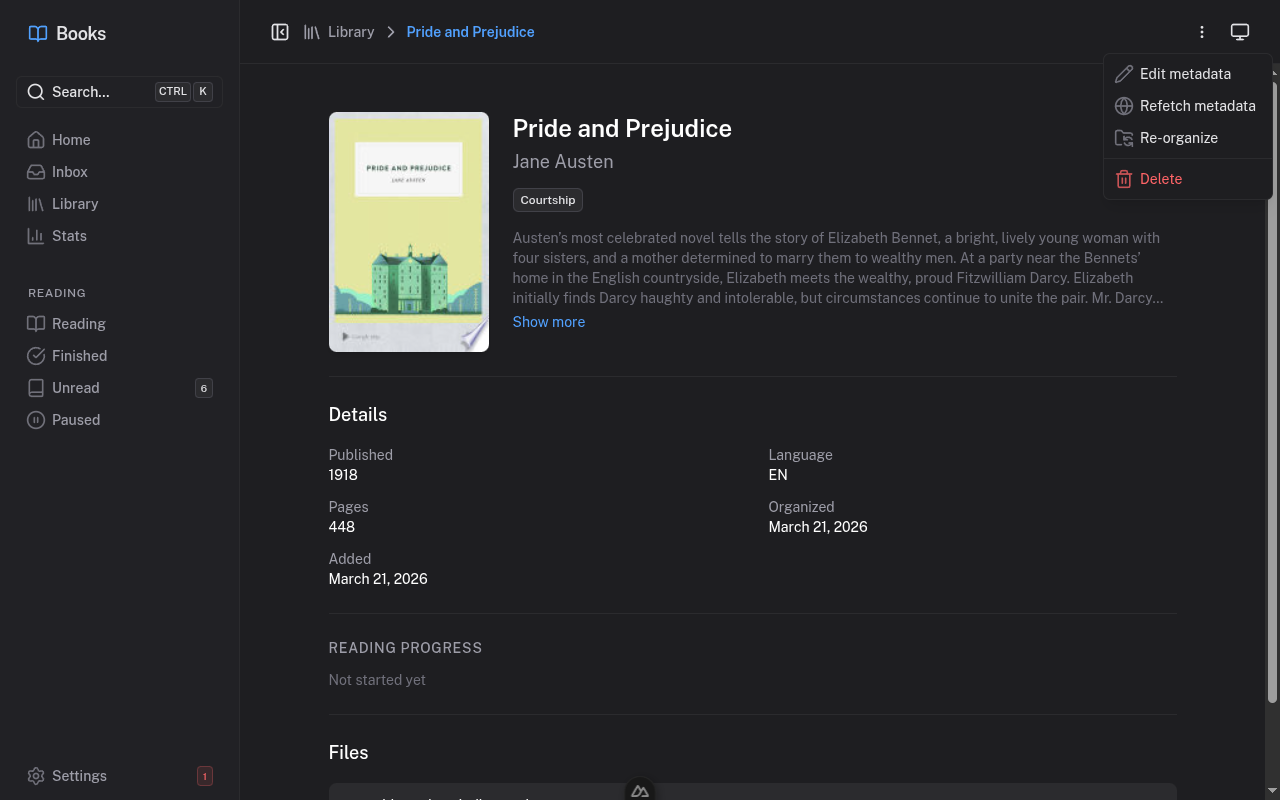
- Edit metadata -- Opens a modal where you can manually edit every field.
- Refetch metadata -- Queries Google Books and Hardcover again for updated metadata.
- Re-organize -- Moves the book's files to match the current title and author (useful after editing metadata).
- Delete -- Permanently removes the book and its files.
Editing Metadata
The Edit Metadata modal gives you direct control over every field: title, author, description, publisher, published year, language, page count, ISBN-10, ISBN-13, genres (comma-separated), and tags.
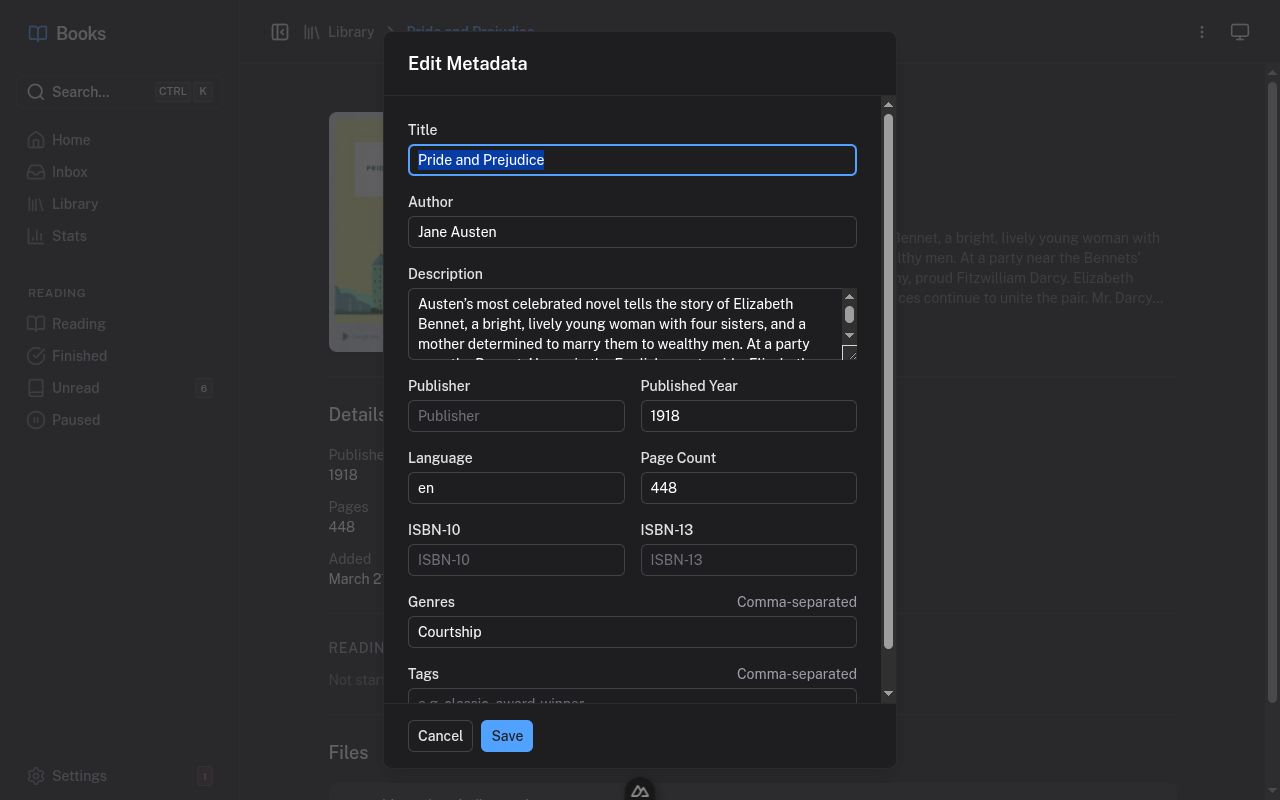
After saving, the book's detail page updates immediately. If you changed the title or author, you may want to use Re-organize from the actions menu to update the folder structure on disk.
Reading Progress
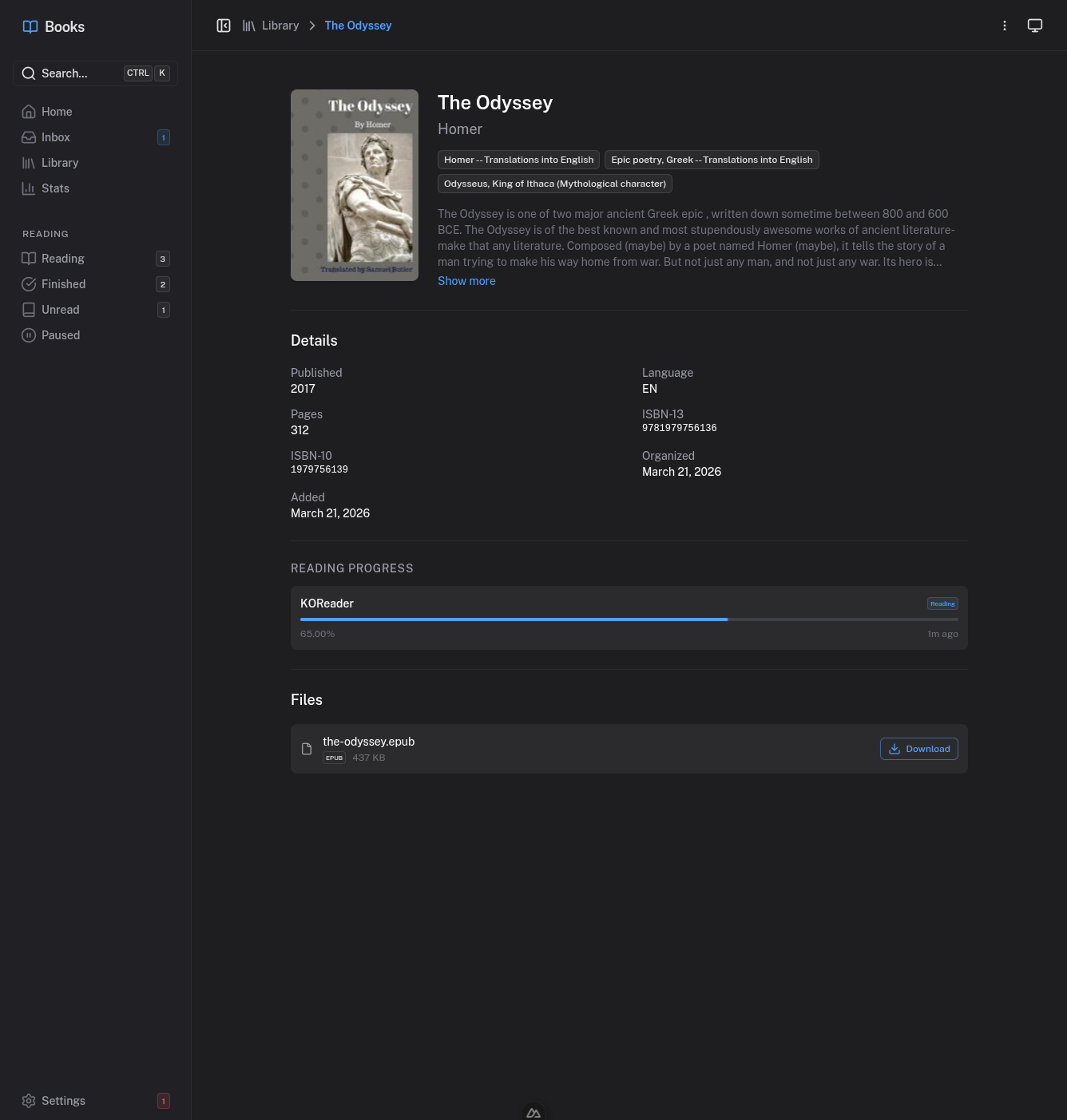
When KoReader syncs progress via KoSync, the Reading Progress section on the detail page shows a progress bar with the device name (e.g., "KOReader Kindle"), the current percentage, the reading status, and when the last update happened.
Refetch Metadata
Sometimes you want to update a book's metadata after it is already in your library -- perhaps a new edition was published, or you want to pull in a better description or cover image. The Refetch Metadata workflow handles this without disrupting the book's place in your library.
Starting a Refetch
From the book detail page, open the actions menu and select Refetch metadata. A confirmation dialog explains what will happen: the app will query Google Books and Hardcover for this book and let you review the results.
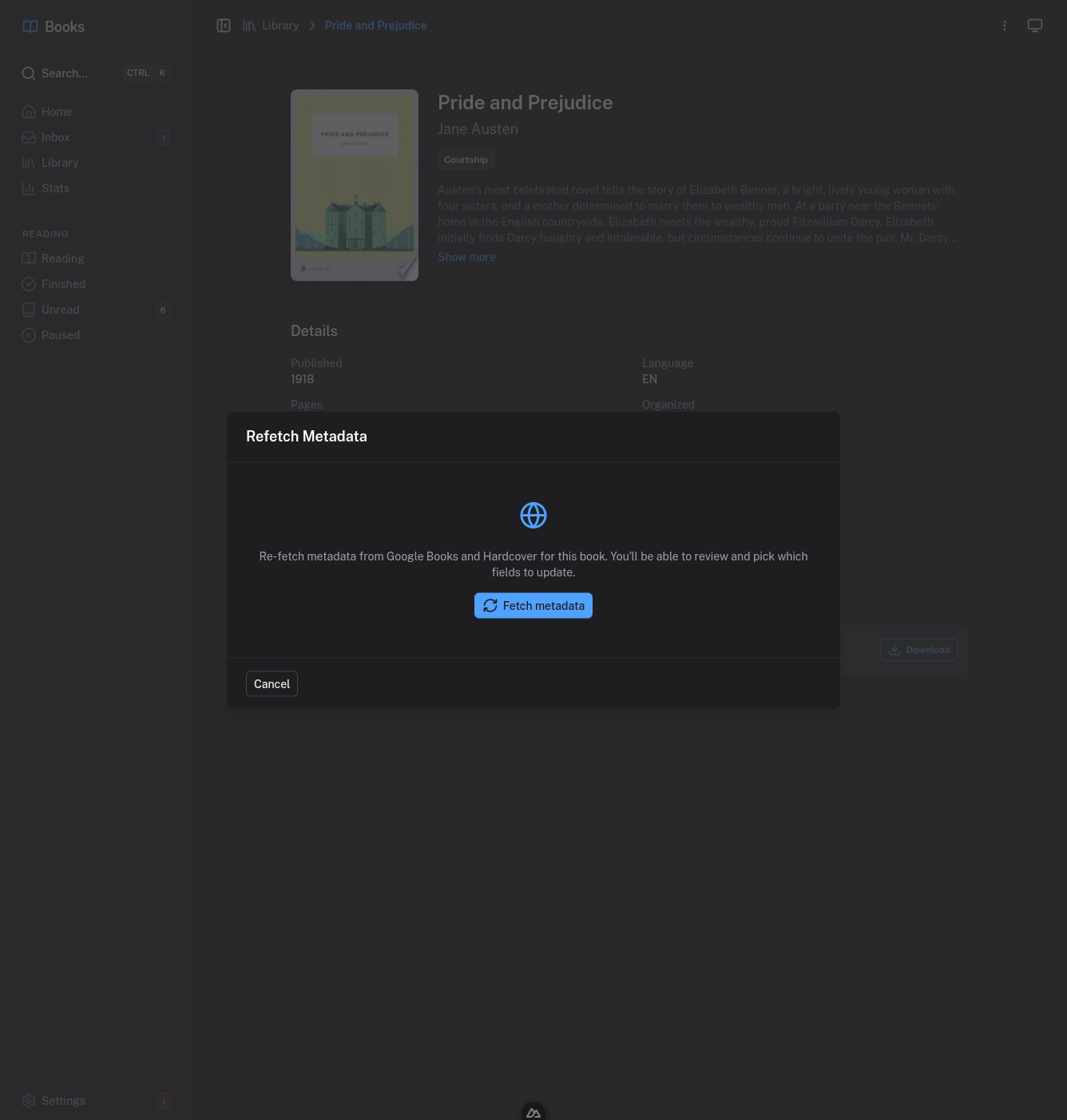
Click Fetch metadata to start. The dialog shows a loading state while the external APIs are queried.
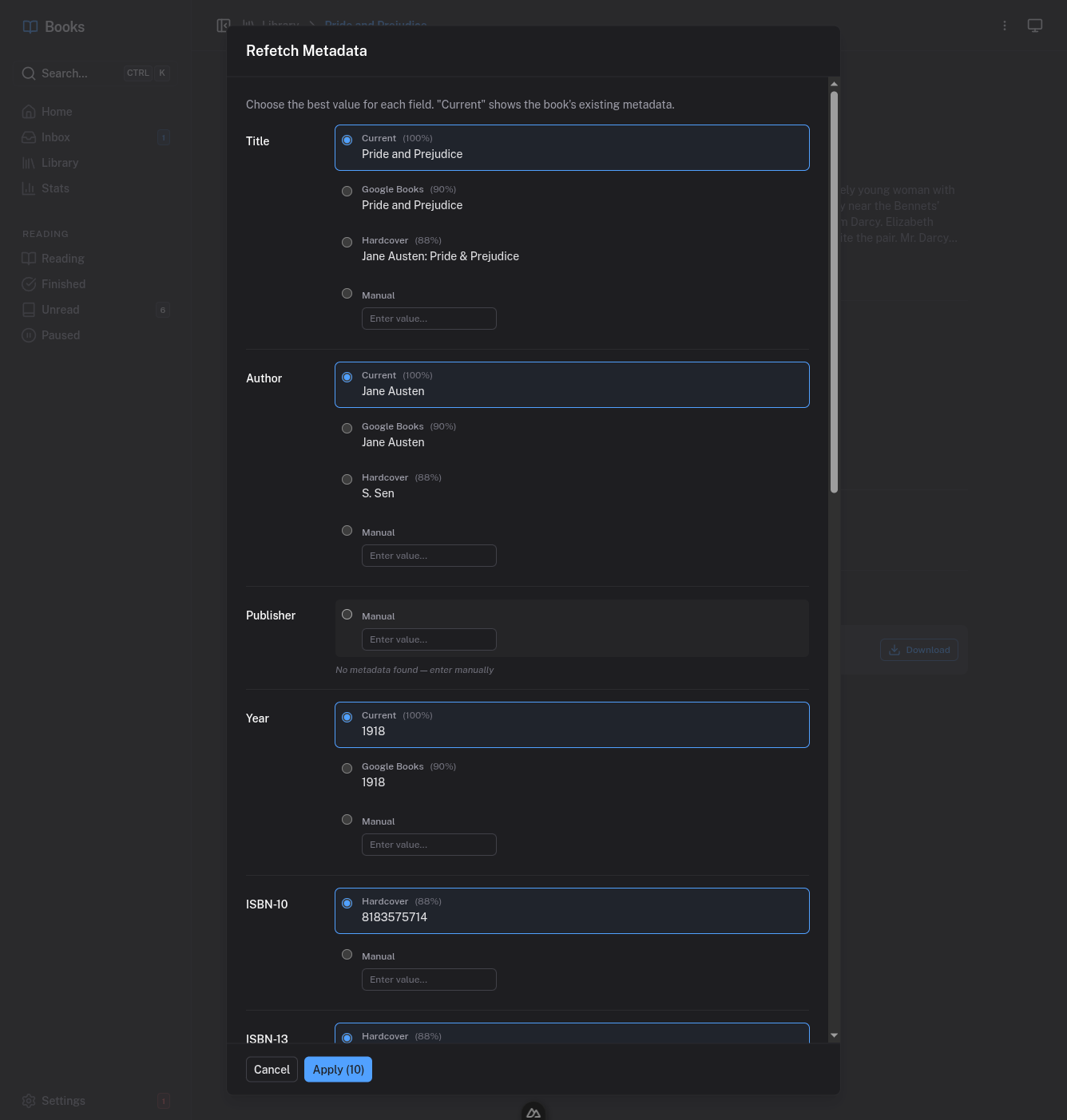
Picking Updated Fields
Once results are back, the picker appears. It works just like the inbox review picker, but with one key difference: the first option for each field is Current, which represents the book's existing metadata. New candidates from Hardcover (and Google Books, if available) appear below.
Each source shows a confidence percentage. For every field, pick the value you prefer -- keep the current one, switch to an external source, or type a manual override. The Apply button at the bottom shows how many fields will be updated.
After applying, the book's metadata is updated in place. If the title or author changed, the book's files are automatically re-organized into the correct folder on disk.
Reading Progress & Stats
Books tracks your reading progress automatically through KoReader's KoSync protocol. There is nothing to do manually -- just read on your KoReader device and progress syncs in the background.
How It Works
KoReader sends your reading position to the KoSync server built into Books. The app derives your reading status from this data:
- Reading -- You have progress between 0% and 100%.
- Finished -- Progress reached 100%.
- Unread -- No progress recorded yet.
- Paused -- No progress update for a while.
Reading Status Page
The Reading page in the sidebar lets you browse your library filtered by reading status. Tabs across the top switch between Reading, Finished, Unread, and Paused. Each book shows its cover, progress percentage, the device it was last read on, and how recently it was updated.
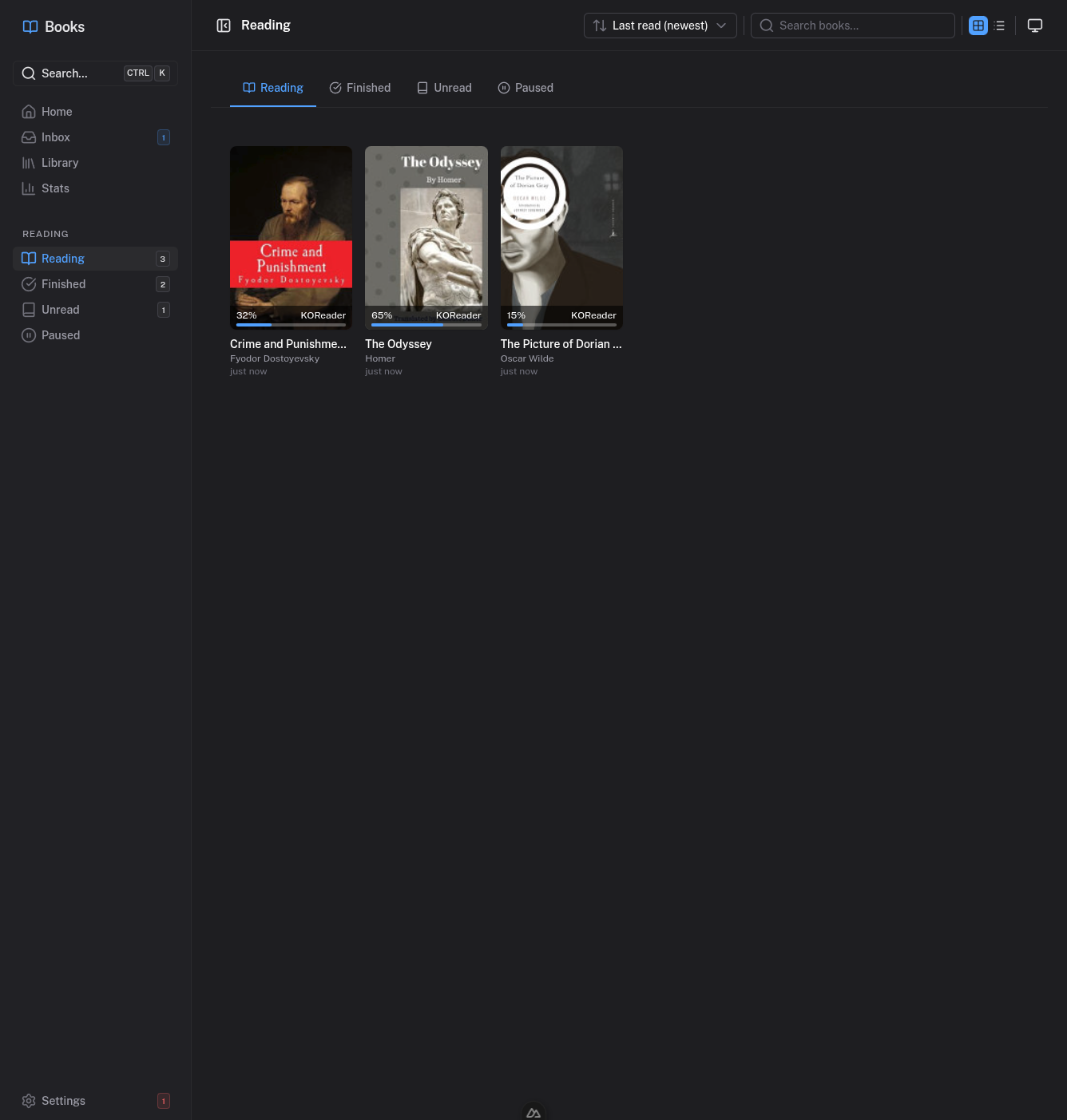
The sidebar also shows count badges next to each status, so you can see at a glance how many books are in each state.
Stats Page
The Stats page provides reading analytics with several summary cards at the top: books finished (all time, this year, this month), your current reading streak and longest streak, and average time to finish a book.
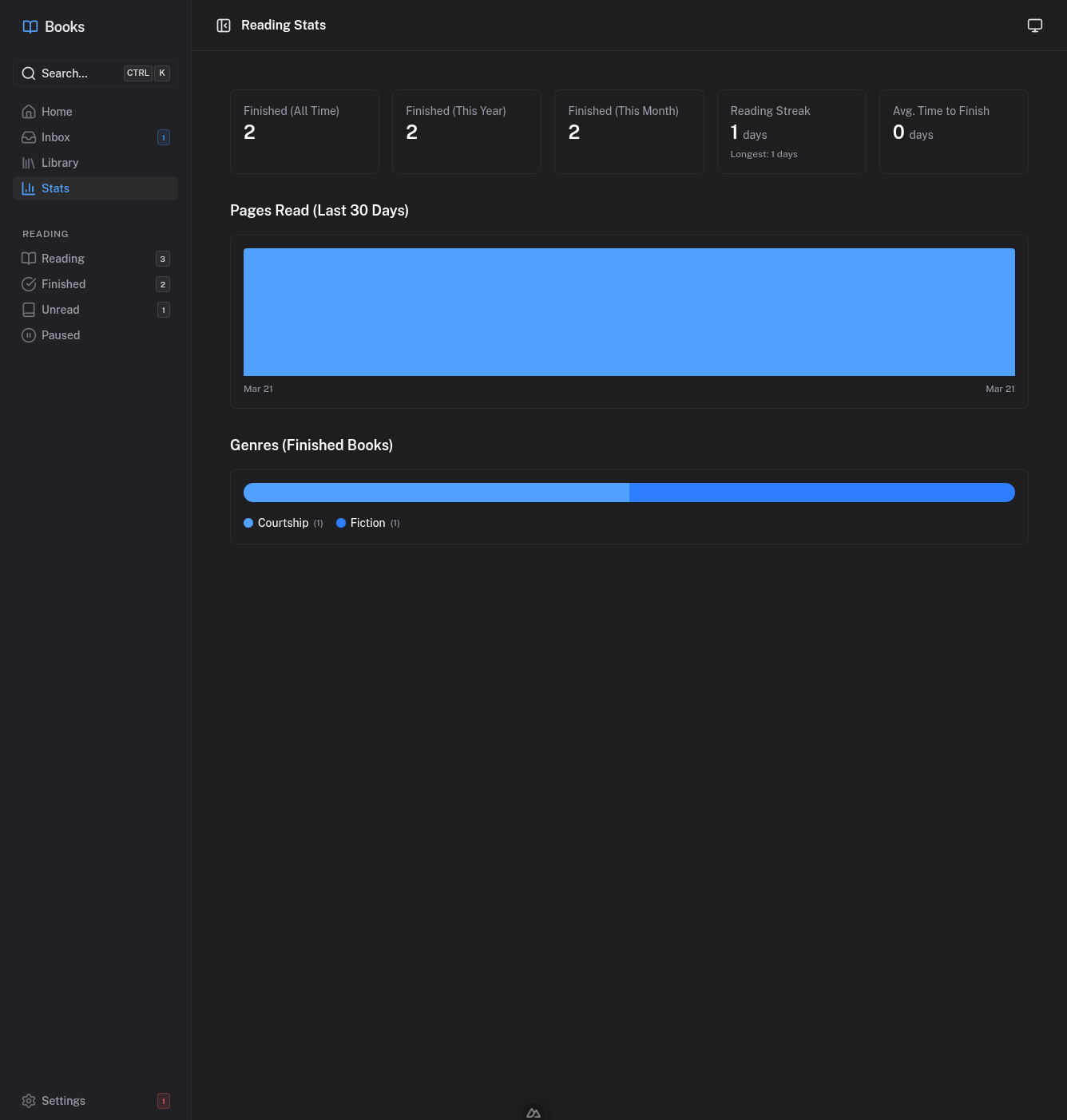
Below the summary cards:
- Pages Read (Last 30 Days) -- A chart showing your daily reading activity.
- Genres (Finished Books) -- A color-coded bar chart breaking down the genres of books you have completed.
Hardcover Sync
If you have connected your Hardcover account in Settings, Books syncs your reading status to Hardcover automatically once per day. You can also trigger a manual sync from the Hardcover section on the Connections settings tab.
Dashboard
The home dashboard gives you an at-a-glance overview of your entire library and reading activity.
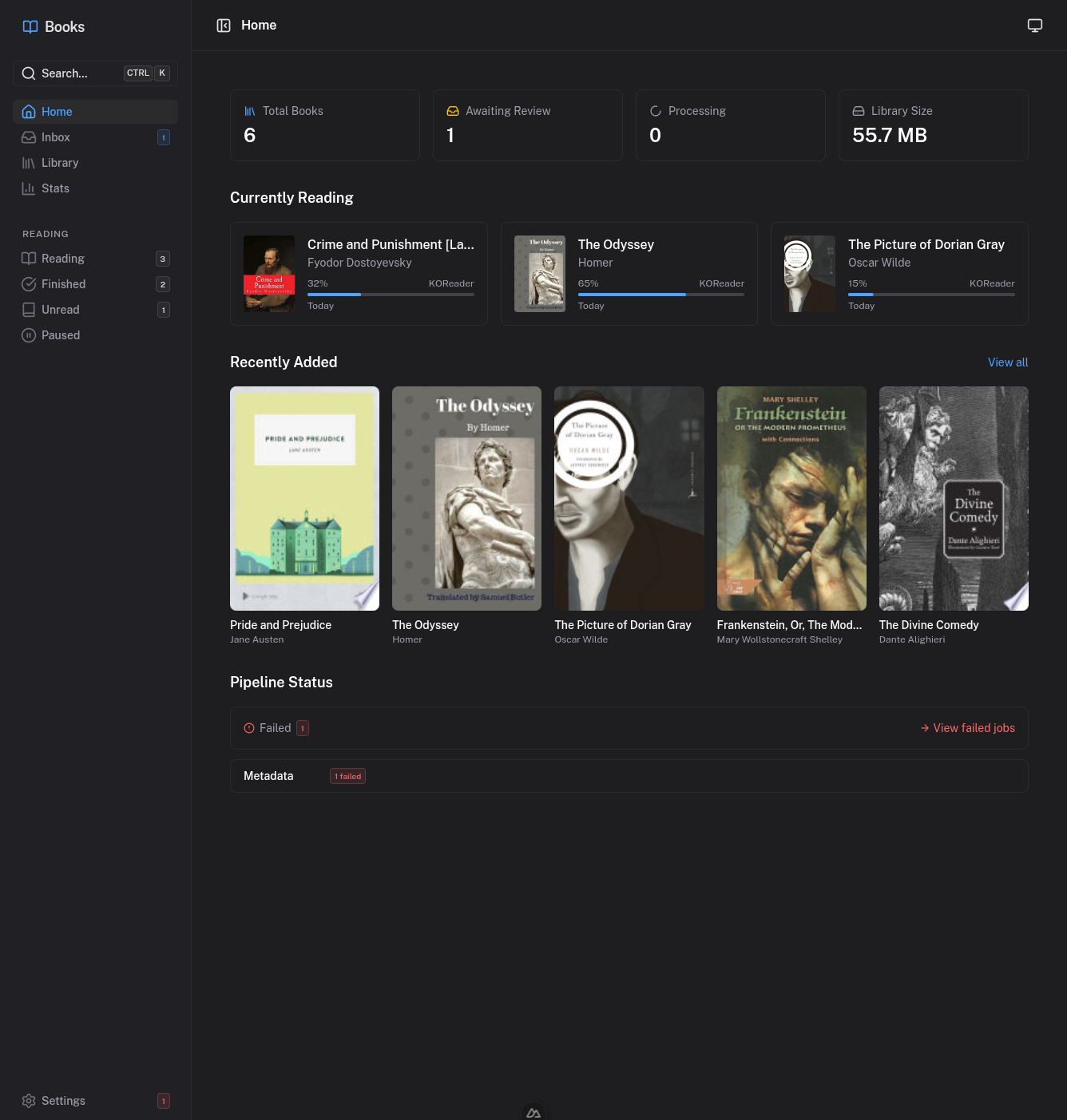
At the top, four stat cards show:
- Total Books -- The number of organized books in your library.
- Awaiting Review -- How many inbox books need your attention.
- Processing -- Books currently moving through the ingestion pipeline.
- Library Size -- Total disk space used by your library files.
Below the stats:
- Currently Reading -- Books you are actively reading, showing cover thumbnails, progress bars with percentages, the device name, and when the book was last read. Click any book to jump to its detail page.
- Recently Added -- The latest books added to your library, displayed as cover cards. Click "View all" to go to the library.
- Pipeline Status -- Alerts for any failed jobs in the ingestion pipeline, with a direct link to view and retry them.
OPDS Catalog
Books includes a built-in OPDS catalog server, which means any OPDS-compatible e-reader app can browse and download books directly from your library. This is one of the most useful features for day-to-day reading.
Supported Readers
Any app that supports OPDS feeds will work, including:
- KOReader -- Open-source reader for Kindle, Kobo, Android, and more.
- Calibre -- Desktop library manager with OPDS browsing.
- Marvin -- iOS reading app.
- Moon+ Reader, FBReader, and many others.
Connecting a Reader
- Go to Settings > Connections in the Books web UI.
- Note the Catalog URL shown in the OPDS section (e.g.,
http://your-server:3100/opds). - Optionally set a dedicated username and password for OPDS access, or use your API key.
- In your reader app, add a new OPDS catalog and enter the URL and credentials.
What You Can Browse
The OPDS catalog supports:
- All books -- A paginated feed of your entire library.
- Recently added -- New additions to your library.
- By genre -- Browse books grouped by genre.
- By author -- Browse books grouped by author.
- Search -- Full-text search from within your reader app.
Books are available for direct download from the catalog in their original format.
Keyboard Shortcuts
Books includes keyboard shortcuts for quick navigation:
| Shortcut | Action |
|---|---|
Ctrl+K | Open global search |
G then H | Go to Home |
G then I | Go to Inbox |
G then L | Go to Library |
G then S | Go to Settings |
Escape | Back to parent page |