Appearance
Getting Started
This page covers the first-run setup, how accounts and roles work, how to pair an e-reader, and which data is shared between users versus kept per user. Read it before adding any books.
First-Run Setup
Open Libris in a browser. While you are signed out, /login is the only route you can reach — every other path redirects there, carrying where you were trying to go so you land on it once you are in.
On a brand-new install that page offers a first-run setup form instead of the sign-in form. It decides which to show by asking the server whether anybody on this install can sign in with a password yet.
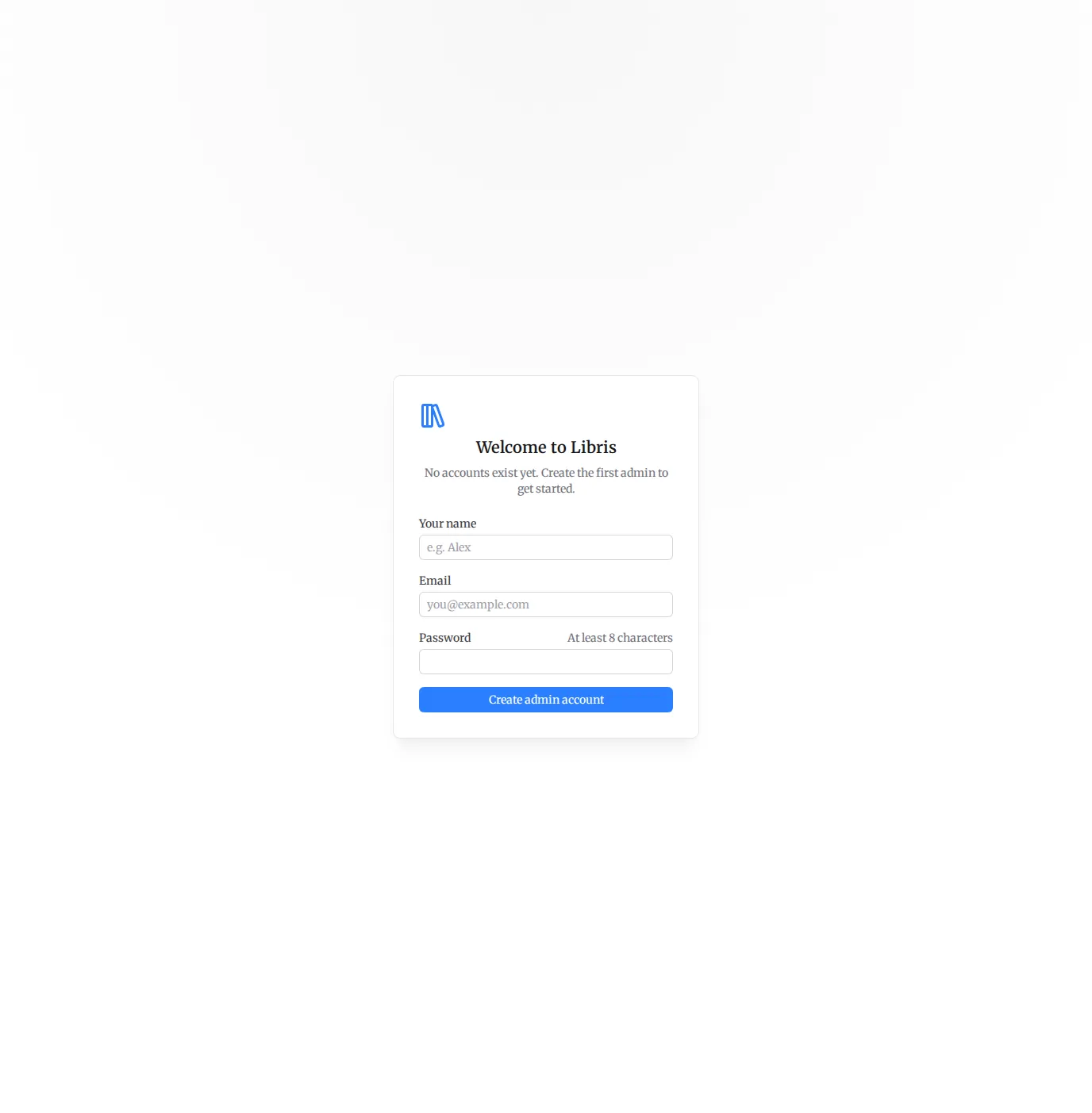
Fill in three fields:
- Your name — how you are shown in the sidebar and on uploader attributions.
- Email — the address you will sign in with.
- Password — at least 8 characters.
Click Create admin account. That creates the first user with the admin role and signs you straight in; there is no second step and nothing to copy down.
TIP
Setup closes behind you. Once one account has a password, the form stops being offered and the endpoint answers 409 — so it is safe to leave mounted.
There is no password-reset email
Libris has no mail transport, so there is no "forgot password" link. An admin resets a password for you from Settings → Users. Keep at least one admin credential somewhere you can get at it.
Upgrading an older install
If you are upgrading a Libris deployment that predates the Better Auth cutover, the same form is your way back in — it attaches your email and password to a user that already exists rather than creating a new one, so nothing loses its owner. See Upgrading in the deployment guide for the ordered steps.
Accounts and Roles
An account is a person, with an email address and a password. Credentials are separate things attached to that person: browser sessions, app passwords for devices, and a KoSync credential. Revoking a credential never touches the account or its history.
There are two roles:
- Admin — sees every Settings tab (Connections, Account, Users, System, Jobs, Failed Jobs, Queues, Paths), manages accounts, inspects server health, and administers job queues. Can edit and delete any book.
- User — sees the Connections and Account tabs. Can upload books, edit and delete their own, connect their own Hardcover account, pair their own devices, and track their own reading.
The role lives on the person, not on a credential, so promoting someone applies everywhere they are signed in on their next request.
Creating additional accounts
There is no self-registration. An admin adds people from Settings → Users → Add someone: name, email, an initial password of at least 8 characters, and a role. Click Create account and pass the password to them out of band — they can change it themselves from Settings → Account.
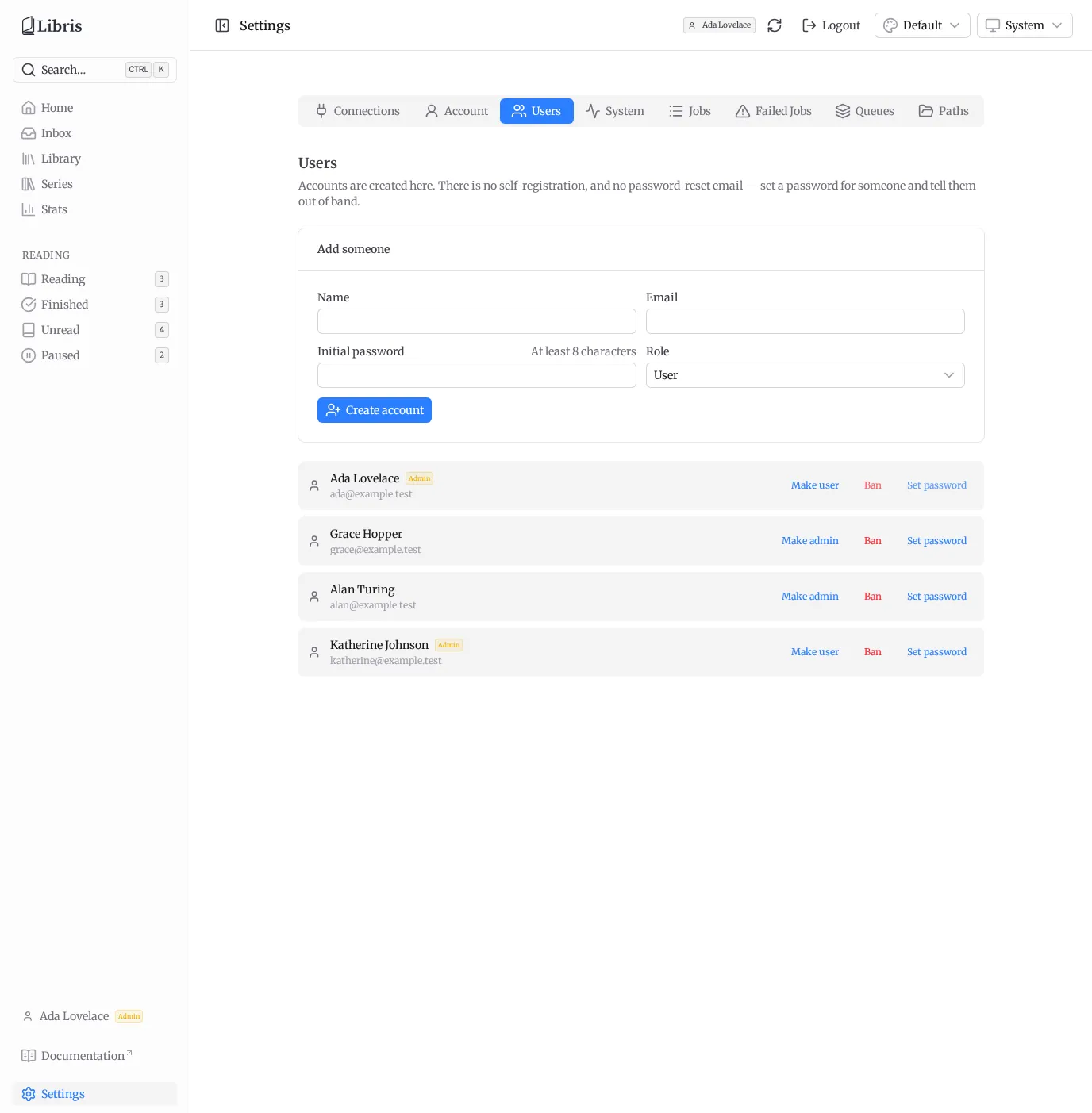
Each row in the user list carries three actions:
- Make admin / Make user — flips the role.
- Ban / Unban — see below.
- Set password — for when someone has forgotten theirs.
Setting someone's password signs out all of their browser sessions, so a captured session cannot survive the recovery. Their app passwords deliberately stay active, because unpairing every e-reader in the house is a worse surprise than leaving them alone.
You cannot lock yourself out
The last remaining admin cannot be demoted or banned, and nobody can ban themselves. There is no delete-account button in the UI — banning is how you cut someone off.
Banning
Banning a user ends their browser sessions and disables every app password they hold, so their e-readers and scripts stop working immediately as well.
Unbanning restores the account, but not the app passwords. The disabled rows stay visible so they can see what was cut off, and they mint a fresh one and re-pair their devices. An unban should never silently re-authorize a device that might be the reason for the ban.
Pairing an E-Reader: App Passwords
Your account password is for the browser. Devices and scripts get their own credential — an app password — from Settings → Connections → App Passwords.
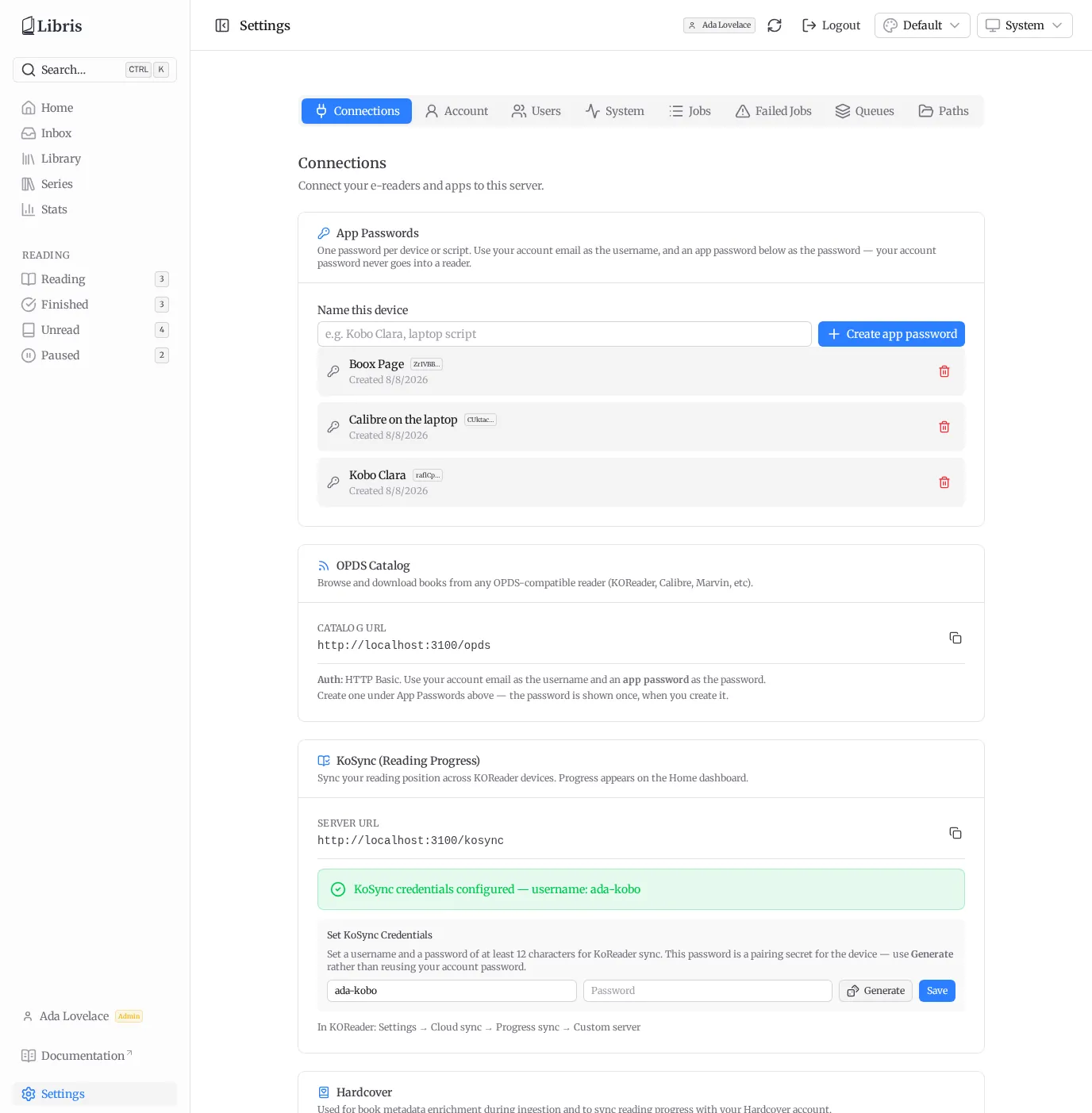
- Type a name for the device in Name this device (for example
Kobo Claraorlaptop script). Names are capped at 32 characters. - Click Create app password.
- Copy the value from the banner. It is shown once and cannot be retrieved later. If you lose it, revoke that row and create another.
Use one per device, so losing a device means revoking one credential rather than all of them. To pair a reader, give it your account email as the username and the app password as the password — see OPDS Catalog for the catalog URL and the reader-specific steps.
App passwords are deliberately limited. They can browse and download the catalog, sync reading progress, and drive the ordinary library, inbox and search API, but they cannot reach account settings, user management, the admin surface, or the panels that mint and revoke credentials. A credential that sits in plaintext on a device that leaves the house should not be able to take over the account that issued it. If something tries, the server answers 403 with "App passwords cannot be used here — sign in for this".
Revoke one from the same panel; it stops working on the very next request.
Shared vs Per-User Data
This is the most important thing to understand in a multi-user install:
The organized book library is shared across all users. Every user sees every organized book in the library, the OPDS catalog, and the series view, regardless of who uploaded it. Books show an uploader badge, and the Library has an optional Uploaded by filter so you can narrow to a specific uploader, but that is a filter, not a boundary. There is no per-user library.
Only the following is per user:
- Reading progress synced from KoReader.
- Reading-status overrides set manually on a book.
- App passwords, KoSync credentials, and the Hardcover token.
- Upload ownership — who uploaded a given file, and therefore who may edit or delete it.
- Reading stats on the Stats page.
So if two people use the same Libris instance, they share one library but keep separate reading progress, separate stats, and their own external-service connections.