Appearance
Settings
The Settings page is where you manage your account, connect your devices and external services, check server health, and view the configured file paths. Signing in and first-run setup happen on /login, not here — see Getting Started.
Tabs
What you see depends on your role.
- Admins see eight tabs: Connections, Account, Users, System, Jobs, Failed Jobs, Queues, and Paths.
- Regular users see Connections and Account.
This page covers Connections, Account, Users, System, and Paths. The Jobs / Failed Jobs / Queues tabs are operational tools for inspecting and retrying BullMQ jobs.
Connections
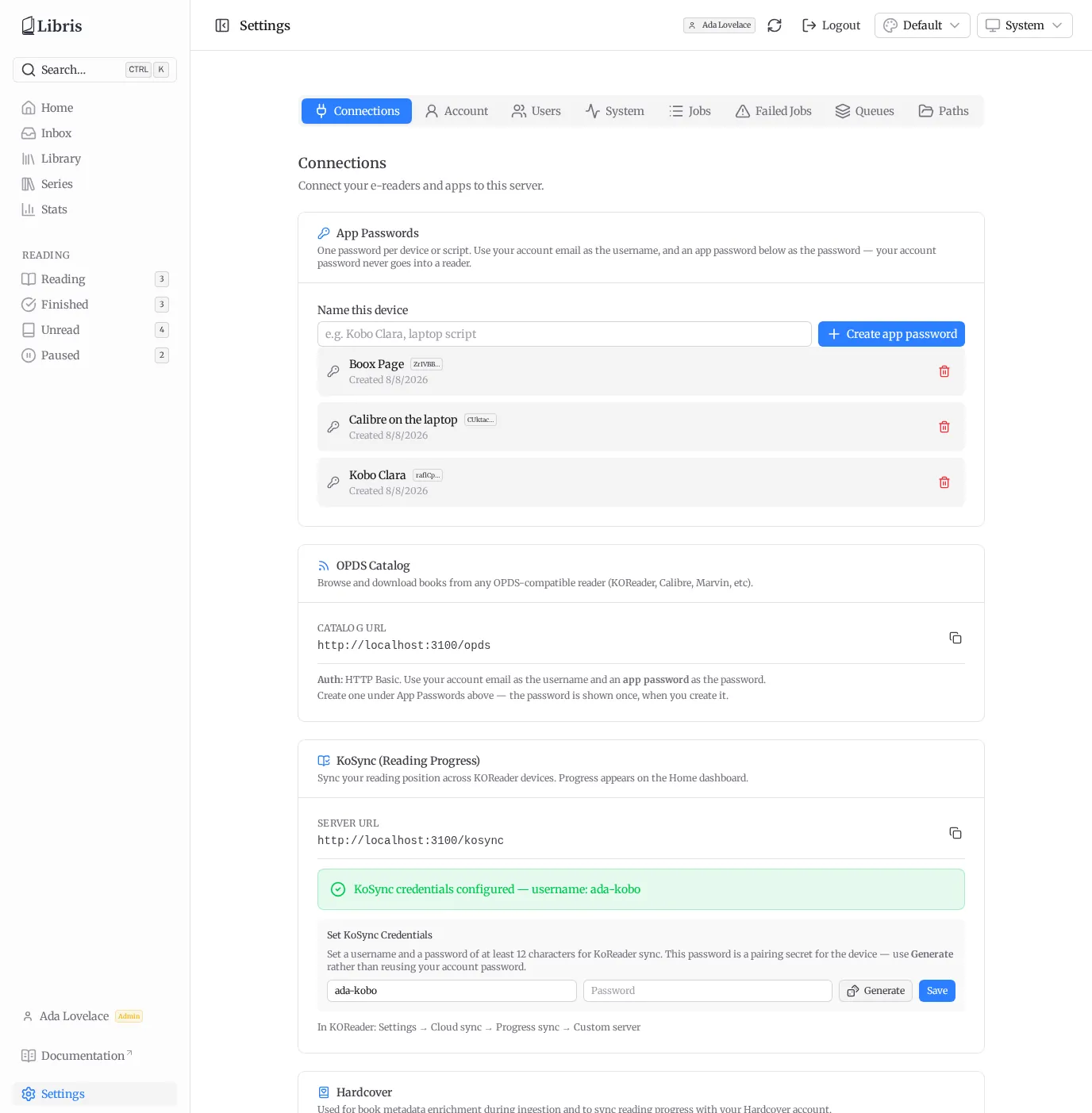
The Connections tab is where you wire up the devices and services that reach this server. It has four sections, in this order: App Passwords, OPDS Catalog, KoSync, and Hardcover. App passwords come first because the two sections below need one.
App Passwords
An app password is the credential a device or script uses, so your account password never has to leave the browser. Name the device, click Create app password, and copy the value — it is shown once and cannot be retrieved later. Revoking a row stops it working on the very next request.
Creating and revoking app passwords is covered step by step in Getting Started, along with what an app password may and may not do.
OPDS Catalog
OPDS is how e-readers browse and download books from the library. The catalog URL is shown here as <host>/opds, with a copy button.
OPDS uses HTTP Basic authentication, and there is no separate OPDS credential to set up any more. Point your reader (KOReader, Calibre, Marvin, and others) at the catalog URL and sign in with your account email as the username and an app password as the password. Only the password component is checked; the username is informational.
The catalog is shared: every authenticated OPDS user sees the entire organized library regardless of who uploaded each book. See OPDS Catalog for details on the browse feeds and supported readers.
KoSync (Reading Progress)
KoSync syncs your reading position from KOReader devices back into Libris. The server URL is shown here as <host>/kosync, with a copy button.
Set a username and password in the Set KoSync Credentials form. This is the only place KoSync credentials can be set — there is no KOSYNC_* environment variable, and there never was. Once saved, the tab shows the configured username.
Treat the password as a pairing secret for the device, not as an account password. Use the Generate button: it fills the field with a random value and copies it to the clipboard, so you can type it straight into KOReader. KOReader hashes it with md5 before sending it, which means whatever you choose here is what an attacker would have to guess if the credential table ever leaked — so do not reuse your Libris password or anything else.
Libris stores the credential as a salted HMAC keyed by a secret derived from API_SECRET_KEY, which lives in the server environment and never in the database. A database backup on its own is therefore useless to an attacker. The consequence is that rotating API_SECRET_KEY invalidates every stored KoSync credential — everyone has to set theirs again and re-pair their devices.
Upgrading from a Libris build older than this one needs no action: credentials stored in the previous format keep working, and each one is rewritten in the new format the first time that device syncs.
To connect a device, in KOReader go to Settings -> Cloud sync -> Progress sync -> Custom server and enter the URL shown on this tab.
Use Login, not Register. Libris accounts are created by an admin, so KOReader's registration button is refused by the server — it will report that registration is disabled and tell you to set your credentials here. Create them in the form above first, then log in on the device with the same username and password.
Hardcover
Hardcover is the external metadata source used during ingestion, and the service that reading progress is synced to. It is connected per-user with an API token.
Get your token at hardcover.app/account/api and paste it into the Hardcover API Token field, then click Save. The token is set here, not via an environment variable. It is stored with reversible encryption (sealed), so it can be read back to call the Hardcover API.
TIP
Each user connects their own Hardcover account. Your token is scoped to your account and is not visible to other users.
For admins
The nightly sync also runs an install-wide maintenance pass (ISBN matching and edition page counts) across the whole library, and that pass spends an admin's Hardcover API quota -- specifically, the oldest admin account that has connected Hardcover. It is skipped entirely if no admin has connected, so if you want it running, connect Hardcover on an admin account. A member's token is never used for it.
Once a token is configured, the section shows a connection status indicator (Connected / Not connected, with the Hardcover username) and the last sync time, plus these controls:
- Use as metadata source -- toggle whether Hardcover is queried for book metadata during ingestion.
- Sync reading progress -- toggle whether reading status and progress are pushed to your Hardcover account.
- Sync Now -- enqueue a Hardcover sync job immediately. Disabled when both toggles are off.
- Show Sync Log -- expand a table of recent sync entries (book, status, progress, synced-at time).
To change the token later, use Update; to disconnect, use Remove. For how reading status is derived and synced, see Reading and Stats.
System (admin only)
The System tab is a health and queue dashboard.
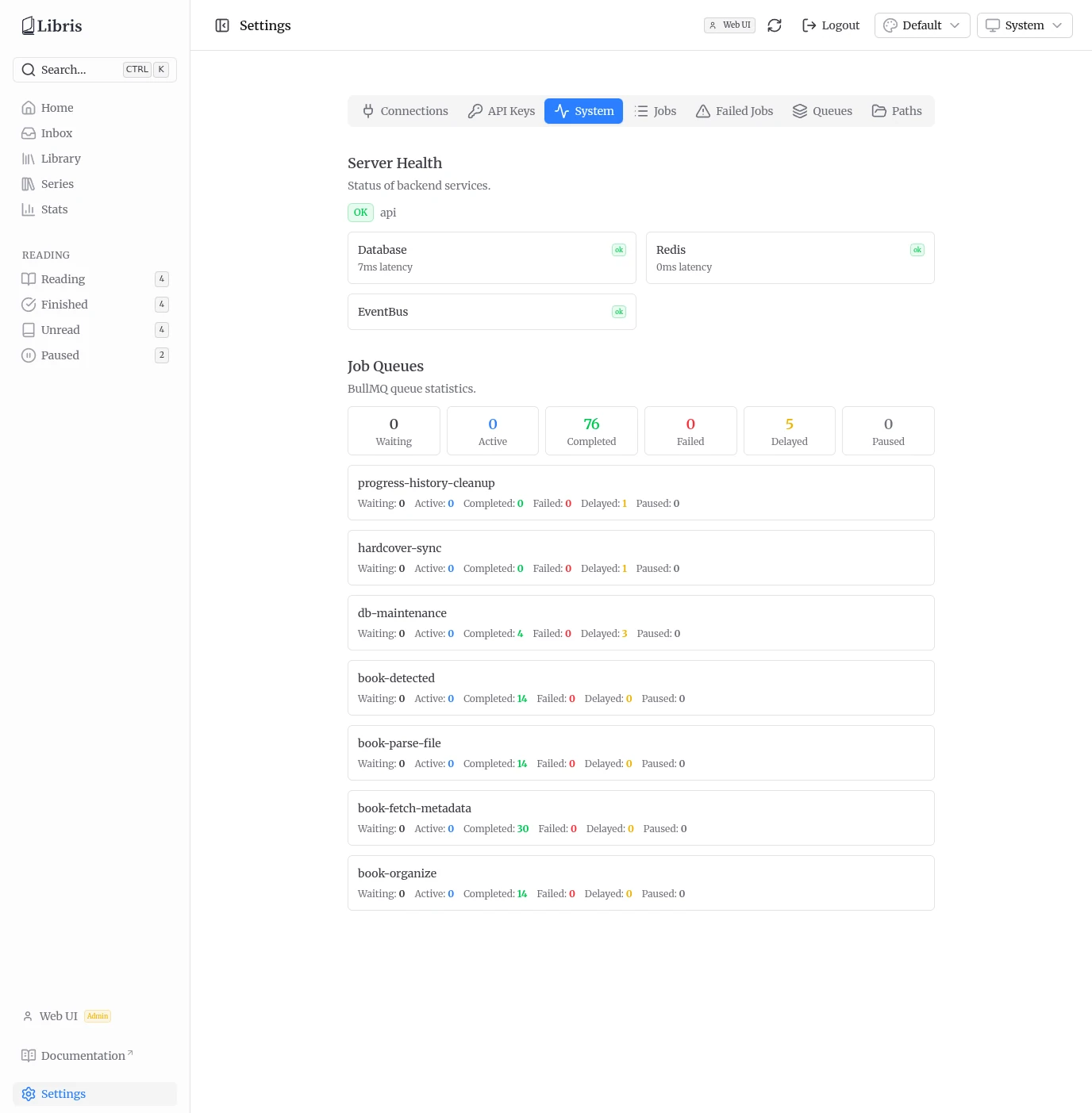
Server Health shows an overall API status badge plus a card per backend check (for example Database, Redis, and the event bus), each with its status and latency in milliseconds.
Job Queues shows BullMQ statistics: a summary row totalling jobs across all queues by state (Waiting, Active, Completed, Failed, Delayed, Paused), followed by a per-queue breakdown of the same counts.
This is the first place to look if ingestion seems stuck. If a queue shows failed jobs, switch to the Failed Jobs tab to see error details and retry individual jobs.
Account
Everyone has this tab; nothing on it is an admin concern. It has three sections.
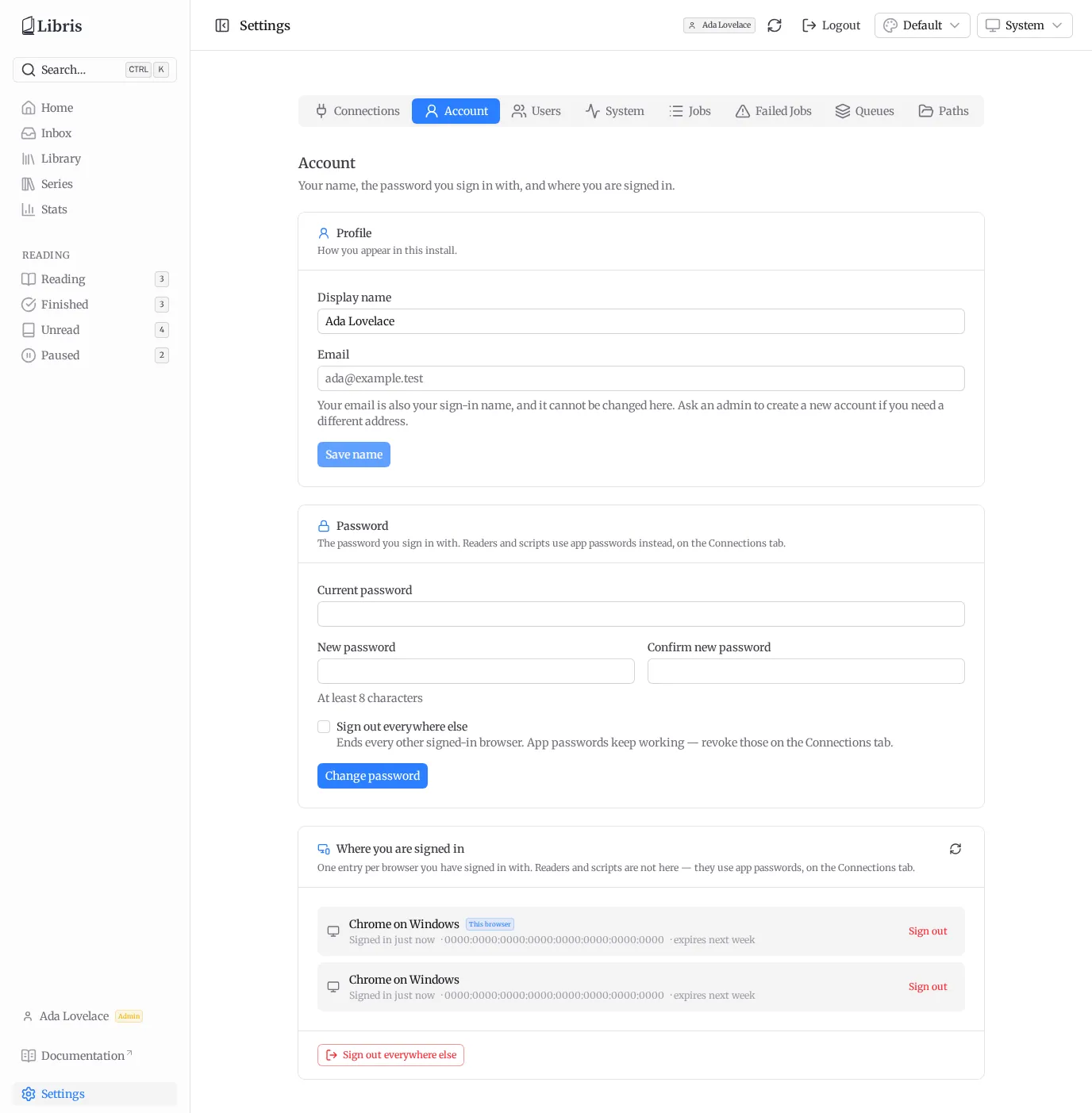
Profile — edit your display name. Your email address is shown but read-only: the server does not support changing it, and an editable field would be a promise it does not keep.
Password — change your own password. You must enter your current one, and confirm the new one. A checkbox offers Sign out everywhere else, which ends every other browser session and re-issues this one a fresh cookie. Your app passwords deliberately survive it — they are separate credentials with their own revoke buttons on the Connections tab, and silently unpairing every e-reader in the house would be a worse surprise.
If the current password is rejected the form says "That is not your current password", rather than something ambiguous about which of the three fields was wrong.
Where you are signed in — every browser signed in to your account: what it is, its IP address, when it signed in, and when the session expires. The one you are using is marked and sorted first. Sign out any row individually, or use Sign out everywhere else for the rest. Both ask before acting.
Signing a browser out is not the same as revoking an app password, and the confirmation says so: revoking an app password unpairs a reader, signing out a browser does not.
Users (admin only)
Accounts are created here and nowhere else — there is no self-registration, and no password-reset email.
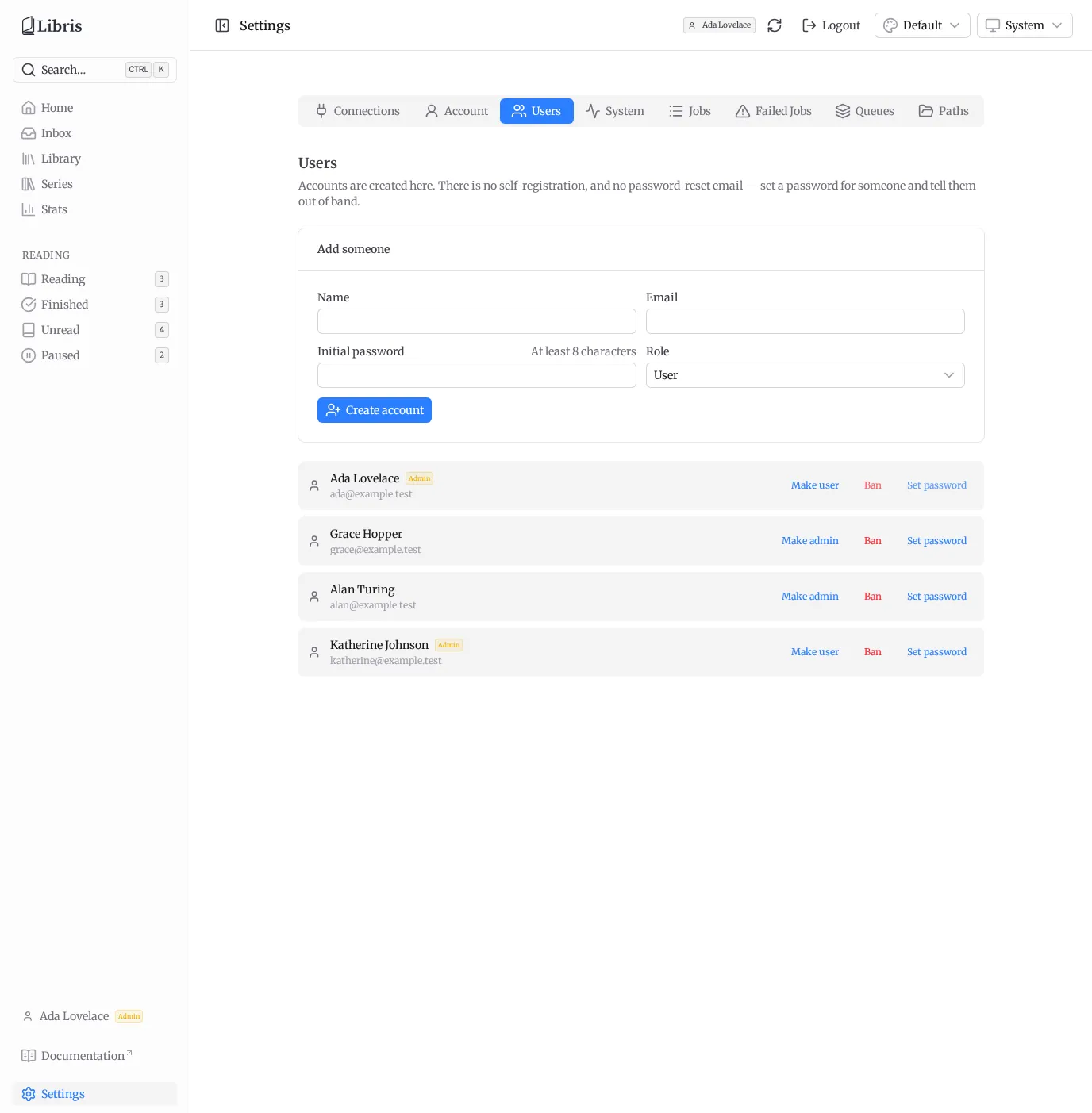
Add someone takes a name, an email, an initial password of at least 8 characters, and a role (User or Admin). Pass the password to them out of band; they can change it themselves from their Account tab.
Each row in the list below shows the person's name, email, an Admin badge where it applies, and a Banned badge if they are, with three actions:
- Make admin / Make user — flips the role.
- Ban / Unban — ends their sessions and disables their app passwords. Unbanning does not re-enable those app passwords; they mint new ones. See Getting Started.
- Set password — signs out all of their browser sessions and leaves their app passwords active.
The last remaining admin cannot be demoted or banned, and you cannot ban yourself. There is no delete-account button.
Paths (admin only)
The Paths tab shows the Library Path and Inbox Path configured on the server. These are set via environment variables at deployment time and are read-only here.
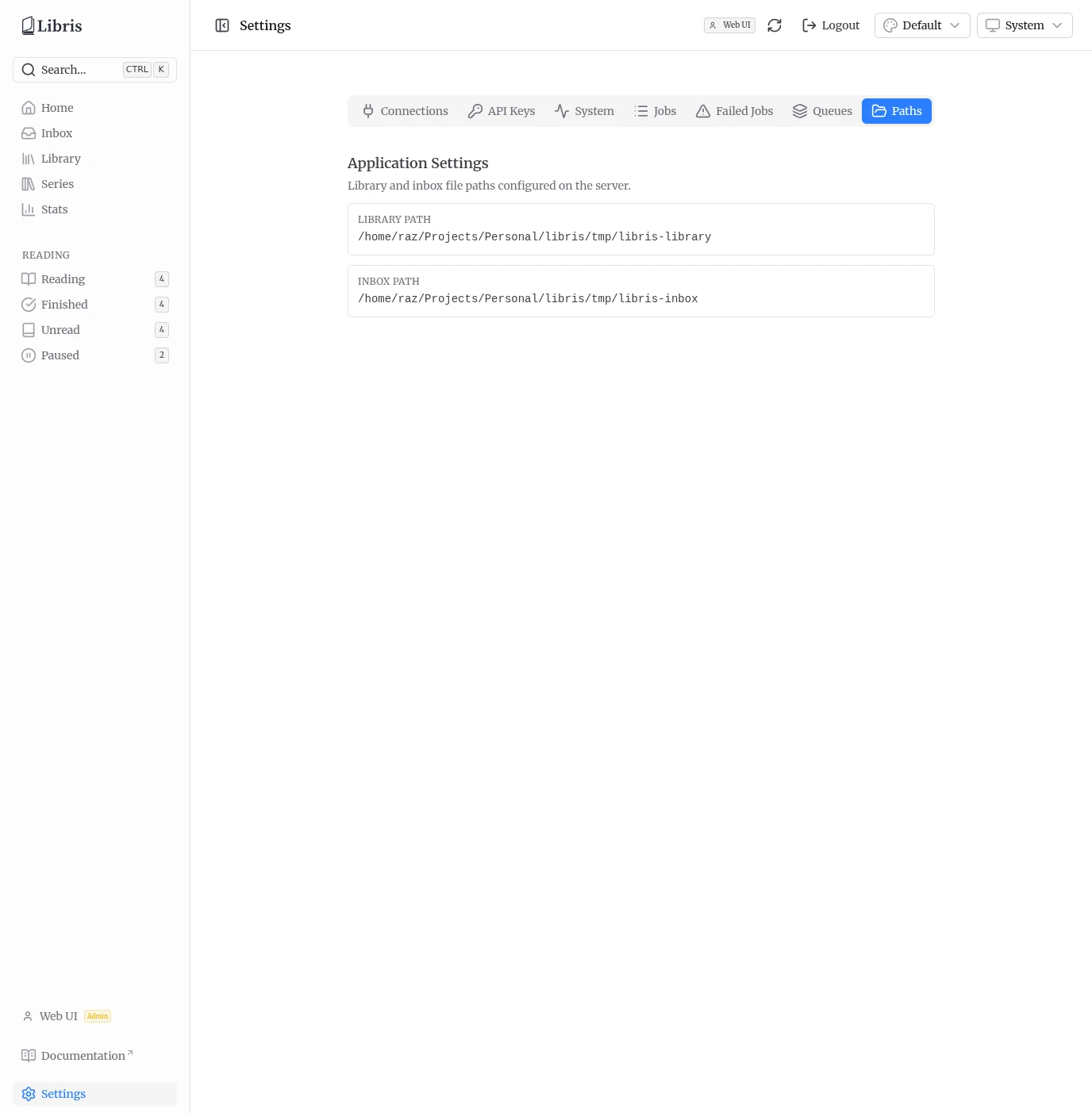
- The inbox path is where new book files land before processing.
- The library path is where organized books are stored in an
Author/Title/folder structure.
See Adding Books for how files move from the inbox into the library.